
Google Sheets integration
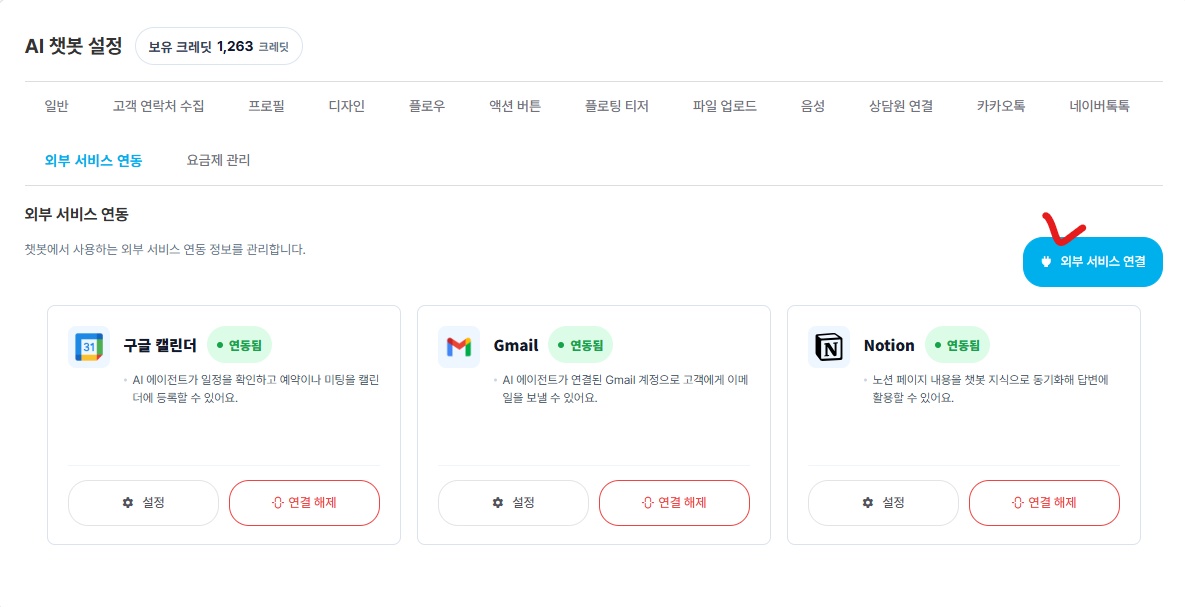
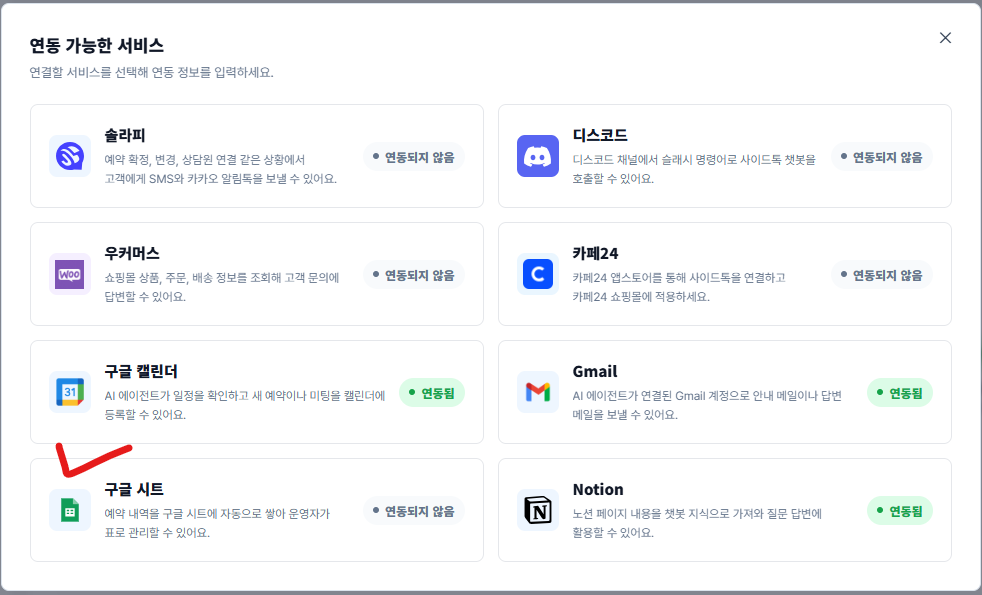
1. Connect Google Sheets in Sidetalk.
In Sidetalk Dashboard → AI Chatbot Settings → External Service Integration,
connect Google Sheets.
2. Connect your Google account
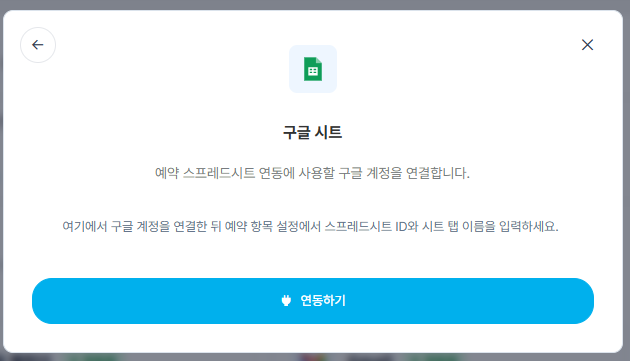
1. Click Connect Google Account and sign in.
2. Approve access to Google Sheets.
3. Prepare a Google Sheet
- Create a new spreadsheet or open an existing one in Google Sheets.
- Click Share at the top right.
- Check that the account used for Google Account Connection has editing access.
General access can remain Restricted. The connected Google account only needs editing access.
4. Copy the Google spreadsheet ID
A Google Sheet URL usually looks like this.
https://docs.google.com/spreadsheets/d/SPREADSHEET_ID/editOpen link
Copy the value between /d/ and /edit.
Example:
Value to copy:
1FL4KDkkWq6s8t38Eqmtl8WVWuVdyTw8C-4wfb6QdGt8
5. Save integration settings
- Enable Google Sheets settings.
- Paste the copied value into Spreadsheet ID.
- Enter the sheet tab name where data should be recorded. Example: Reservations
- Click Save.