
How do I enter training data?
1. Go to the dashboard
Sign in to the Sidetalk website and go to the dashboard.
Select a registered chatbot to see the menus below.
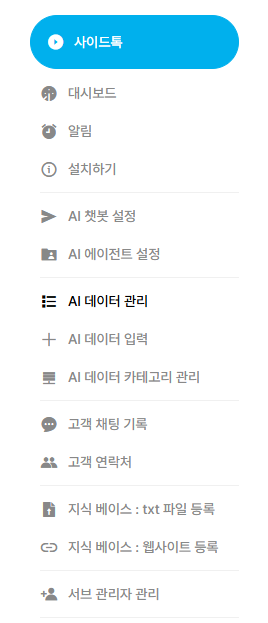
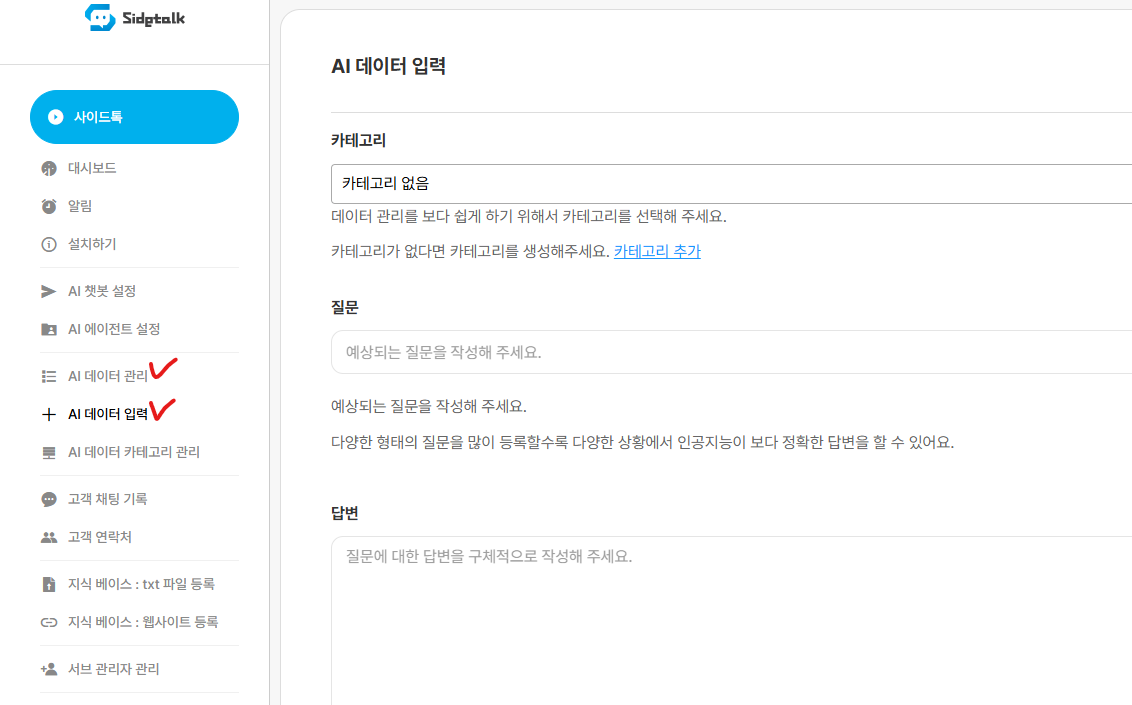
2. Enter and manage data (required)
In most cases, you only need to register and manage data here.
Data registered in AI Data Input takes top priority when generating AI answers.
You can register data in AI Data Management.
3. Register data files (optional)
If it is difficult to enter questions and answers one by one, upload existing conversation records or manuals for the AI to reference in its answers.
Knowledge Base: Register Data Files supports the following formats.
- TXT files: previous conversations or text materials
- PDF files: product instructions, user guides, operational manuals, and other documents
When entering conversation records in a TXT file, use a conversational format that clearly separates questions and answers.
File size limits are as follows.
- TXT files: up to 3MB
- PDF files: up to 20MB
After uploading a file, check that its status is Upload Complete and enable it for use in AI answers.
To generate answers based on a specific uploaded file, use the AI agent’s Add File Data action.
The AI agent’s Add File Data action may show only knowledge base files smaller than 1MB.
See the page below for details about file-based answer actions.
4. Final notes
Answers use registered data similar to the information the questioner wants, so remember that adding more data helps the AI answer better. 😀
Regularly check Customer Chat History and add missing information to build a powerful customized AI chatbot.