
What do voice playback and input do?
1. Introduction
Sidetalk’s voice feature plays conversational answers in natural speech and supports voice input through a microphone.
Administrators can enable or disable voice for each chatbot and specify a Voice and speaking style/tone instructions to match the brand’s tone.
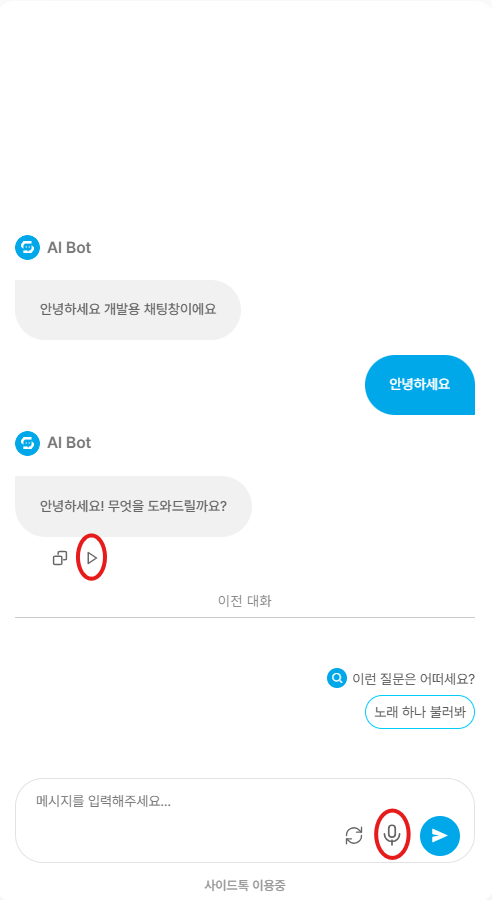
Voice input lets users ask questions or give commands by speaking. When needed, speech is converted to text and included in the conversation.
On sites or pages where voice is disabled, the related UI is hidden automatically to keep the experience simple.
2. Voice settings
In Dashboard → AI Chatbot Settings → Voice,
turn on the Enable Voice toggle.
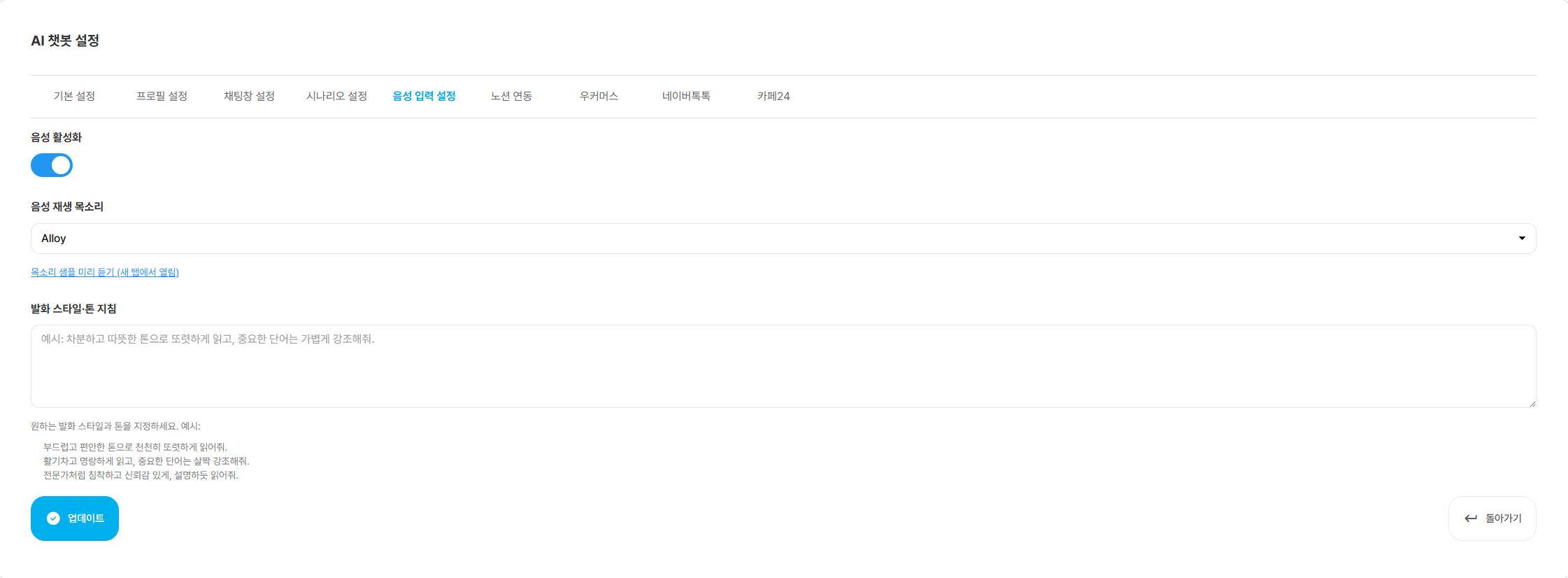
When enabled, voice input and voice playback buttons appear in the chatbot’s chat window.
3. Voice for playback
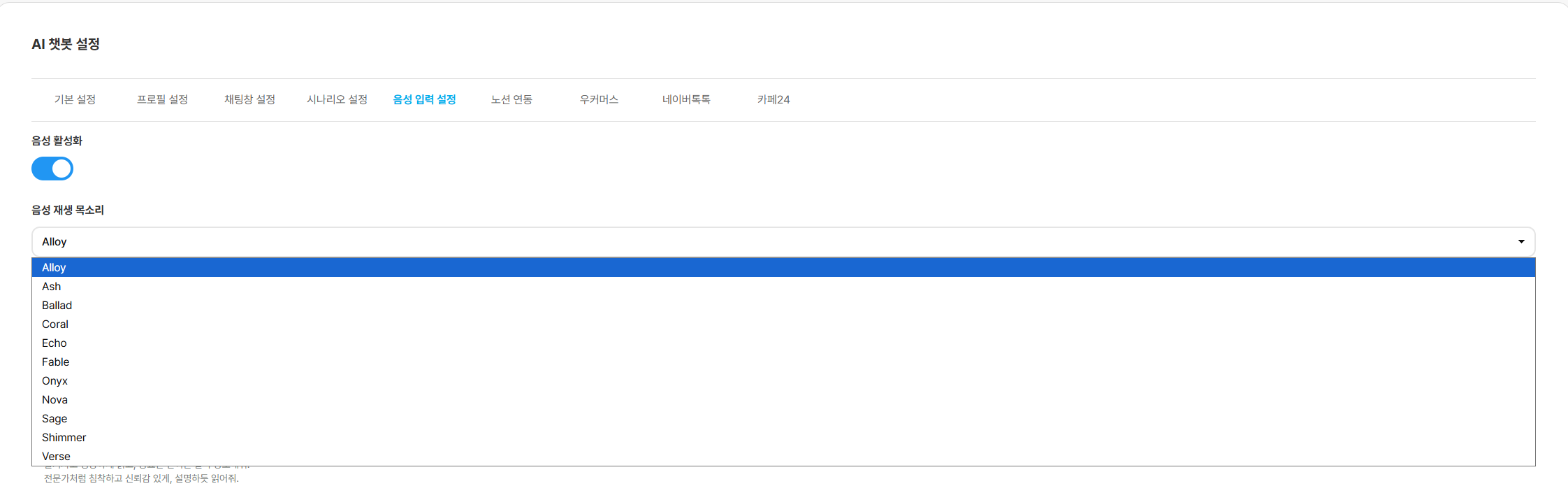
Choose the voice you want under Playback Voice.
Use the voice sample page to help choose a voice.Open link
4. Speaking style and tone instructions

- What is this?
- A short instruction describing the tone, speaking style, and feel of voice playback.
- Example: “Be friendly and cheerful, with light emphasis on key words.”
- What should I write?
- Tone/atmosphere: calm, lively, trustworthy, friendly, professional, etc.
- Speed/rhythm: slow, normal speed, clear, gentle pauses, etc.
- Emphasis/intonation: emphasize important words lightly, pronounce numbers clearly, etc.
- Style/formality: informal/polite, friendly/formal, explanatory/guidance/emphasis, etc.
- Audience/situation (optional): explain as if speaking to a child, make it understandable to beginners, etc.
- Pronunciation/language (optional): pronunciation of proper names, native pronunciation of foreign words, etc.
- How long should it be?
- Recommended: 1–3 sentences (approximately 50–200 characters). Shorter and more specific is better.
- Points to keep in mind
- Avoid conflicting instructions. (Example: “Very fast” + “Slowly”)
- Use specific words instead of vague expressions. (Example: “Nicely” → “Calmly and warmly”)
- Test and adjust gradually as needed.