Connect an AI chatbot to your KakaoTalk channel
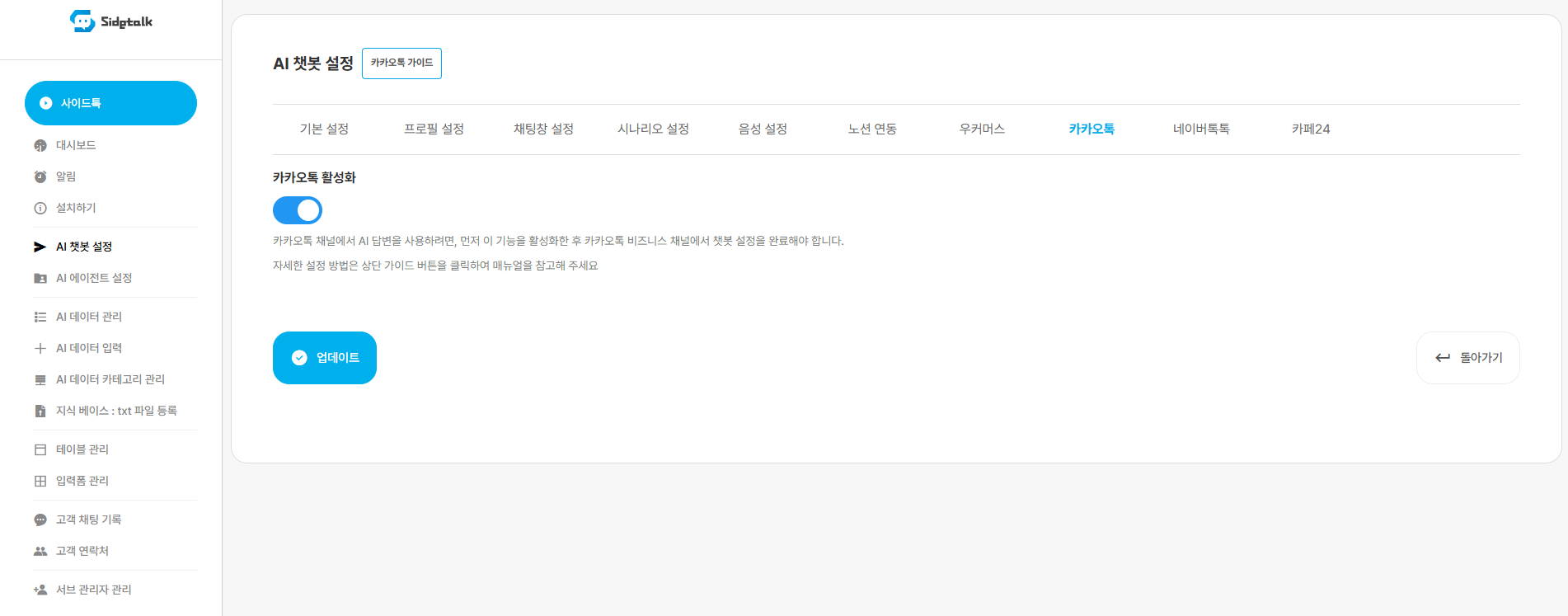
1. Enable KakaoTalk in Sidetalk.
In Sidetalk Dashboard → AI Chatbot Settings → KakaoTalk,
enable KakaoTalk.
2. Create a KakaoTalk channel.
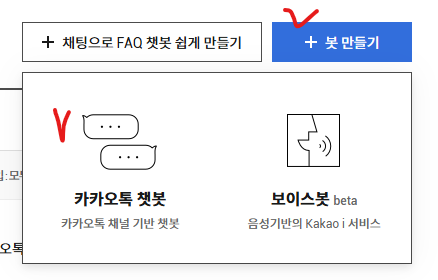
3. Create a KakaoTalk chatbot.
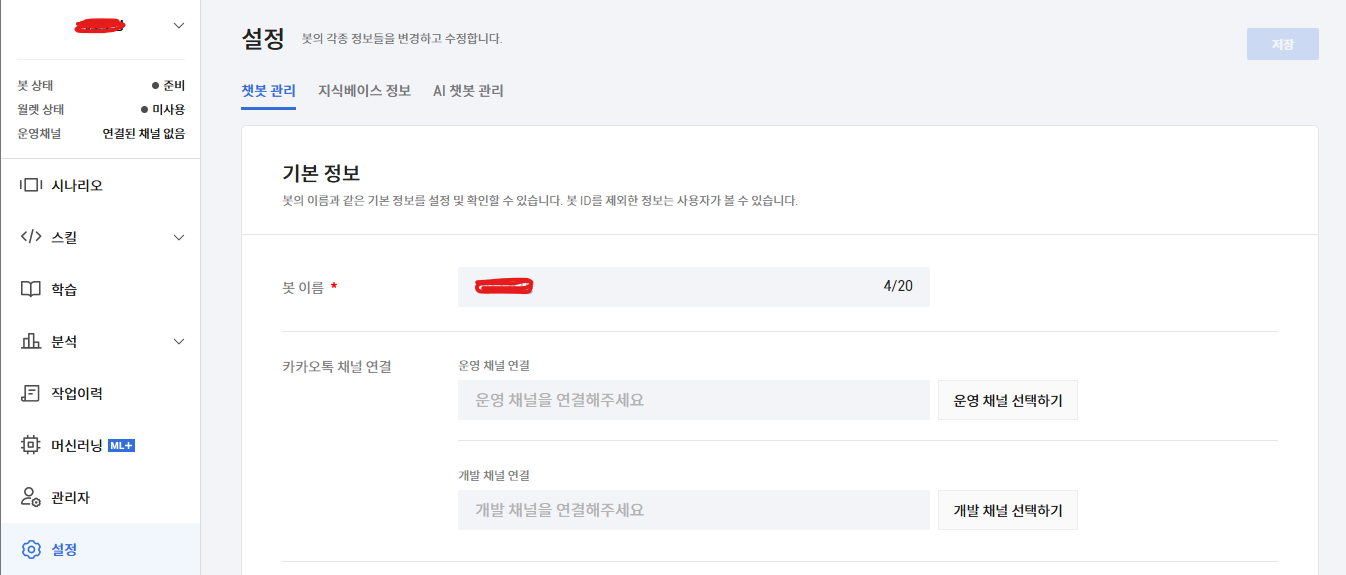
4. In Settings → Chatbot Management, select the production channel.
A production channel must be selected.
5. Create a skill from Skill List in the left menu.

6. Enter the details on the skill creation page and save.
Be sure to check Set as Default Skill.
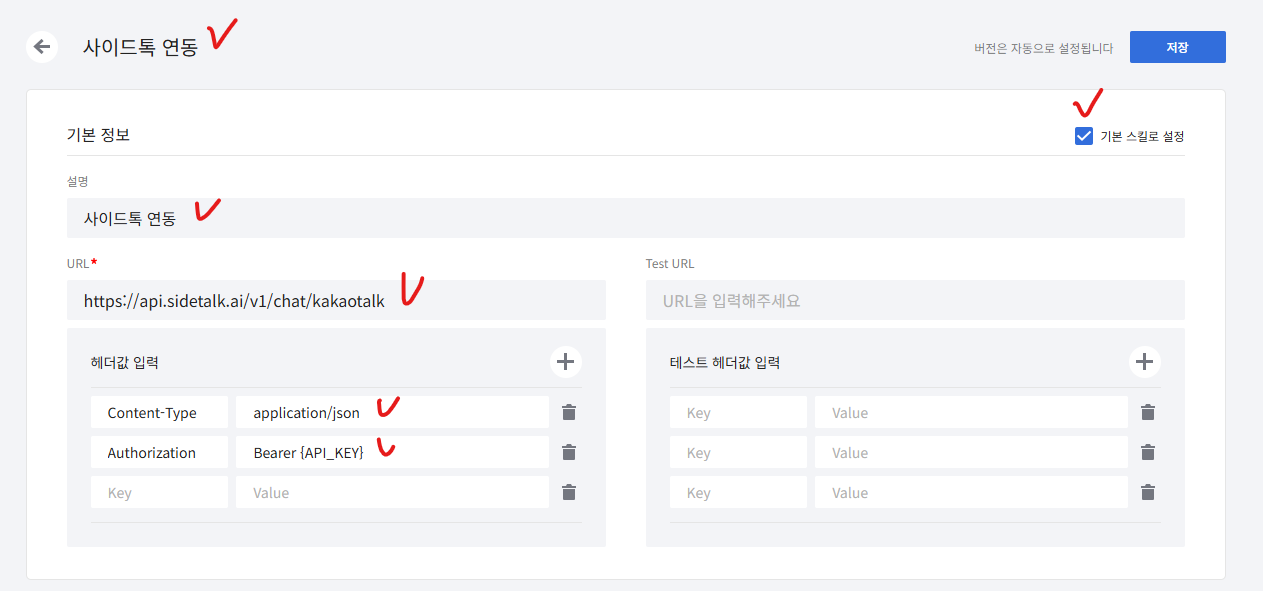
Enter a recognizable title and description.
URL : https://api.sidetalk.ai/v1/chat/kakaotalk
Header 1: Content-Type | application/json
Header 2: Authorization | Bearer {API_KEY}
※ Find {API_KEY} in Install in the Sidetalk dashboard.
※ The braces {} around {API_KEY} are not needed.
※ Remove leading and trailing spaces from entered values.
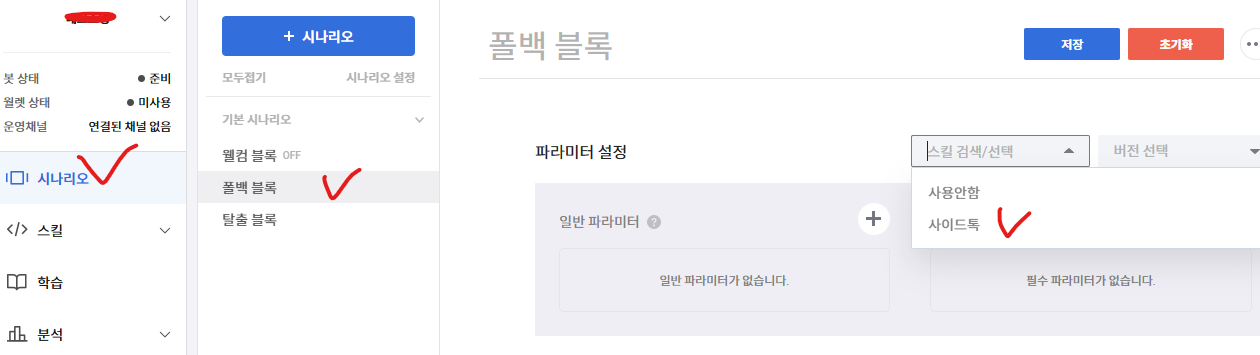
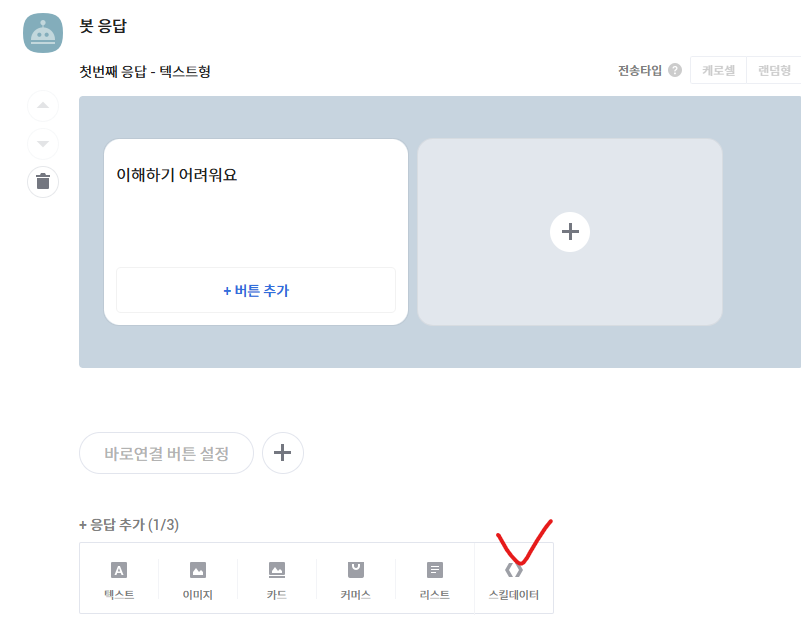
7. Select the fallback block in Scenarios, select the skill you just added, and choose Skill Data under Add Response.
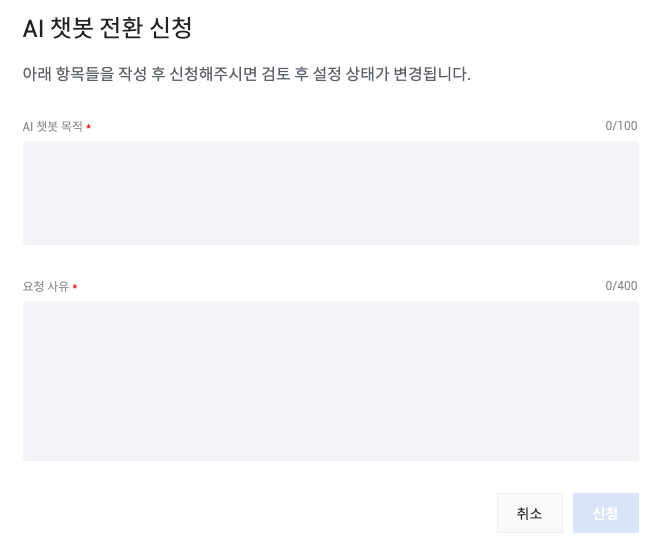
8. Apply to switch to an AI chatbot in Settings → AI Chatbot Management. (This takes about 1–2 days.) (If this option is absent, go straight to the next step.)
Example application
AI chatbot purpose: using an AI consultation service
Reason for request: development has been completed.
9. Once the switch is complete, configure Callback in Scenarios → Fallback Block.
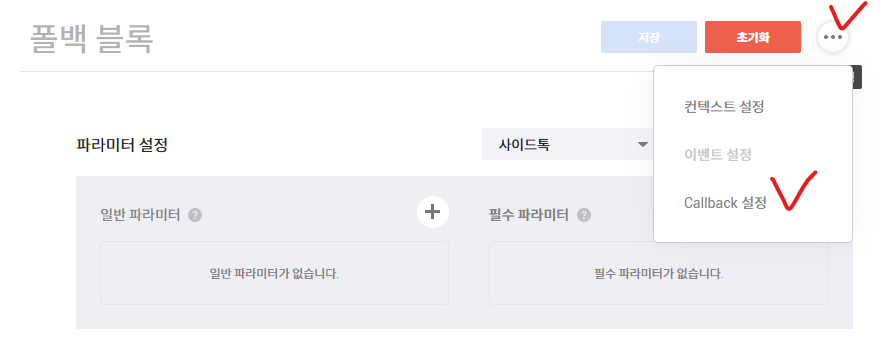
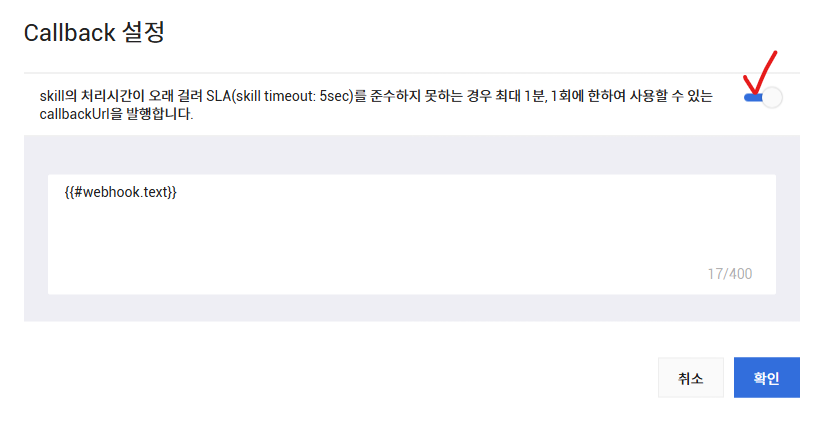
Plain Text
{{#webhook.text}}Enter the text above.
10. Select Skill Data under Bot Response below and save.
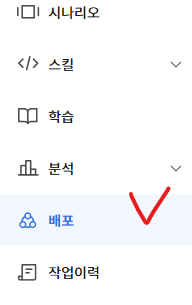
11. Deploy from the chatbot’s Deployment menu to finish.