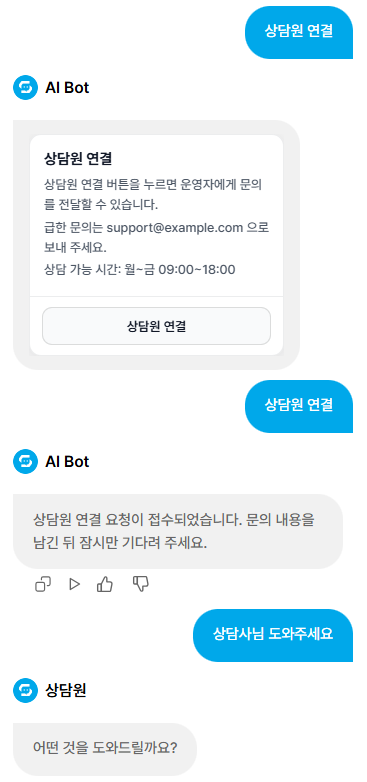
Agent handoff guide
Agent handoff guide
Turn Agent Handoff ON to let customers know that a person can help during a conversation.
The AI handles initial responses, while this feature lets customers request a support agent when needed.
1. Use agent handoff
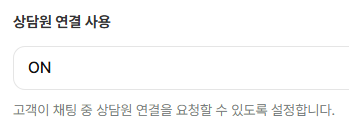
With Agent Handoff ON, you can show handoff information in the customer chat window.
This feature is useful in situations such as:
- A person needs to take over an inquiry the AI cannot answer easily.
- You want to offer another contact method, such as email or a phone number.
2. Use live chat
Turn Live Chat ON as well to continue the conversation in real time from the admin screen after a customer requests an agent.
3. Guidance message
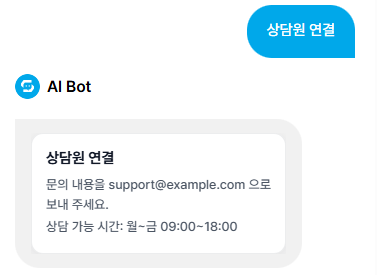
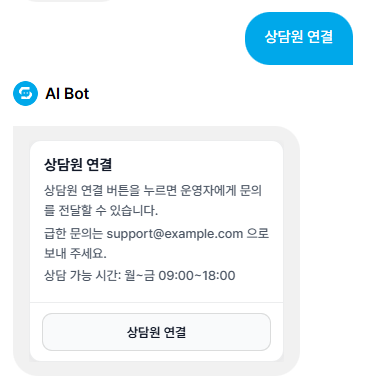
This message is shown to customers when agent handoff is needed.
Include information such as the following.
- How to contact the operator or support agent
- How to use the Connect to Agent button
- Hours when the operator or agent can be contacted
Example message (Live Chat OFF)
Example message (Live Chat ON)
4. Notification methods
Choose how administrators receive notifications when a customer requests an agent.
You can select more than one method.
The main supported methods are:
- SMS
When a customer requests an agent, notifications are sent using the selected methods.
5. Notification language
This is the language of notification messages sent when an agent handoff request arrives.
Choose a language that is easy for your operators to understand.
For example:
- Korean for a Korean-language operation
- Japanese for a Japanese-language operation
- English for an English-language operation
Choose based on the staff who actually read the notifications.
6. Notes for SMS
Complete Solapi setup before using SMS notifications.

Without Solapi configuration, SMS notifications may not be sent correctly.
Before using SMS, check the following.
- Whether Solapi integration details are entered correctly
- Whether the sender number and basic settings are configured
- Whether a test message can be sent
Complete Solapi configuration before setting up SMS notifications.
7. Enable file uploads in live chat
Turn File Uploads in Live Chat ON to let customers and agents exchange files during live chat.
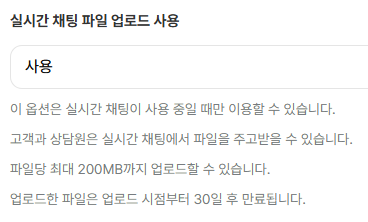
This feature is useful in situations such as:
- A customer needs to send a photo or document.
- An agent needs to send guidance materials or files to a customer.
Keep the following in mind when uploading files.
- Each file can be up to 200MB.
- Uploaded files expire 30 days after upload.
- Expired files can no longer be viewed or downloaded.
8. Notify customers when an agent initiates chat
Turn Notify Customer When Agent Initiates Chat ON to send customers a consultation link when an agent starts live chat first.
If the web chat window is open, a chat invitation appears there. If it is closed or the customer is chatting through KakaoTalk, the consultation link is sent through the selected notification method.
At least one of the following customer details must be registered to send a notification.
- Email: the customer’s email address
- SMS: the customer’s mobile number
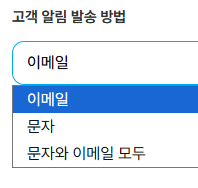
Choose from the following customer notification methods.
- SMS
- Send both email and SMS
If the customer lacks the contact details required for the selected method, no notification is sent.
SMS requires Solapi setup first. If Solapi is not connected, only email can be selected.
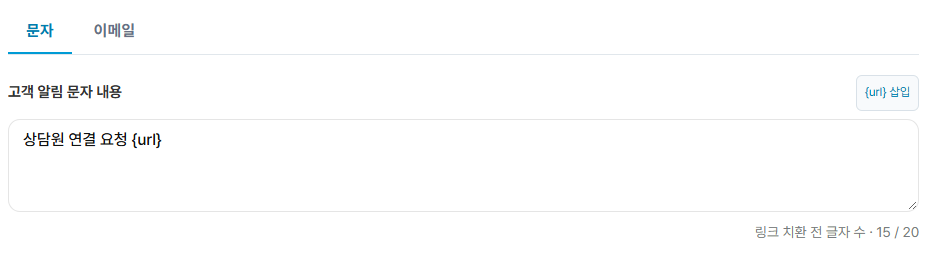
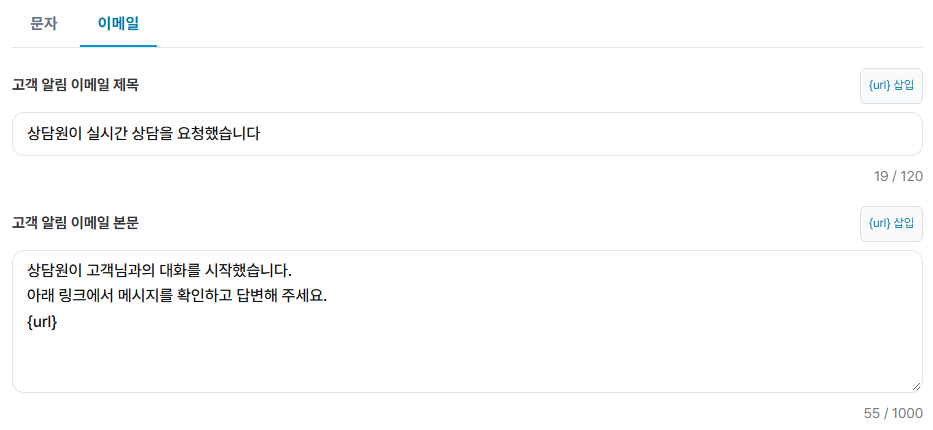
You can customize notification wording too.
- SMS notification text
- Email subject
- Email body
Include {url} in the notification text to automatically replace it with the customer’s consultation link when sent. Check your wording in the preview.
How to respond in live chat
- Agent handoff requests appear in the customer chat list.
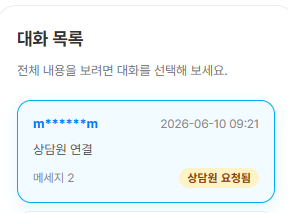
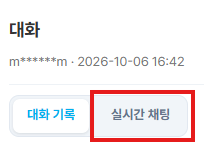
Start the conversation with the Live Chat button.
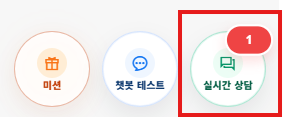
- Open the live consultation popup with the Live Consultation button in the Sidetalk dashboard.
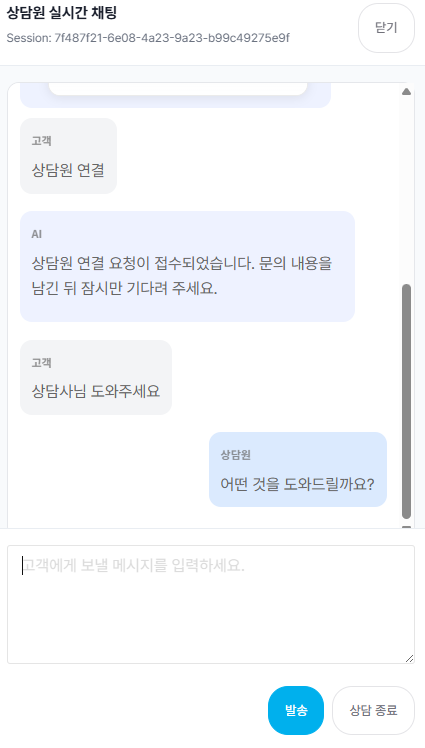
Actual chat screens
Agent screen
Customer screen