
Basic settings guide
1. Custom settings
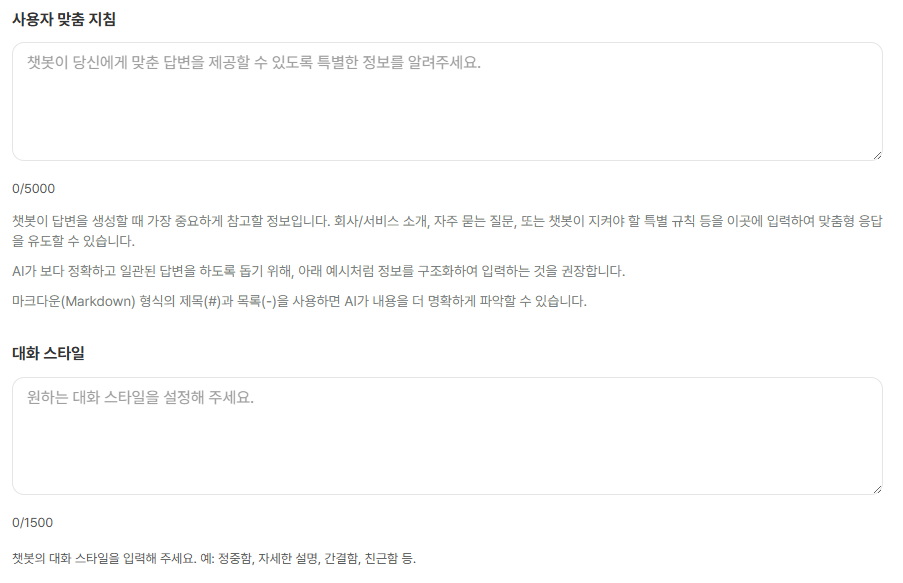
Configure custom instructions and conversation style in Sidetalk Dashboard → AI Chatbot Settings → General.
JSON
# 회사 정보
- 우리 회사는 AI 챗봇 솔루션을 만드는 '사이드톡'입니다.
- 주요 제품은 '사이드톡'입니다.

# 답변 규칙
- 모든 고객에게는 '고객님'이라는 호칭을 사용하세요.

# 금지 사항
- 경쟁사 이름은 절대 언급하지 마세요.
Chatbot customization guide
For custom instructions, enter your company introduction, service policies, FAQs, answer rules, and restrictions. You can enter up to 5,000 characters.
For conversation style, enter the tone and response style you want, such as polite, detailed, concise, or friendly. You can enter up to 1,500 characters.
2. Chatbot information
The chatbot name identifies the chatbot in the administrator interface. Keep it within 20 characters.
Enter the website addresses where the chatbot will be used under Installation Website URL (Allowed Chatbot Domains). Separate multiple domains with commas or line breaks.
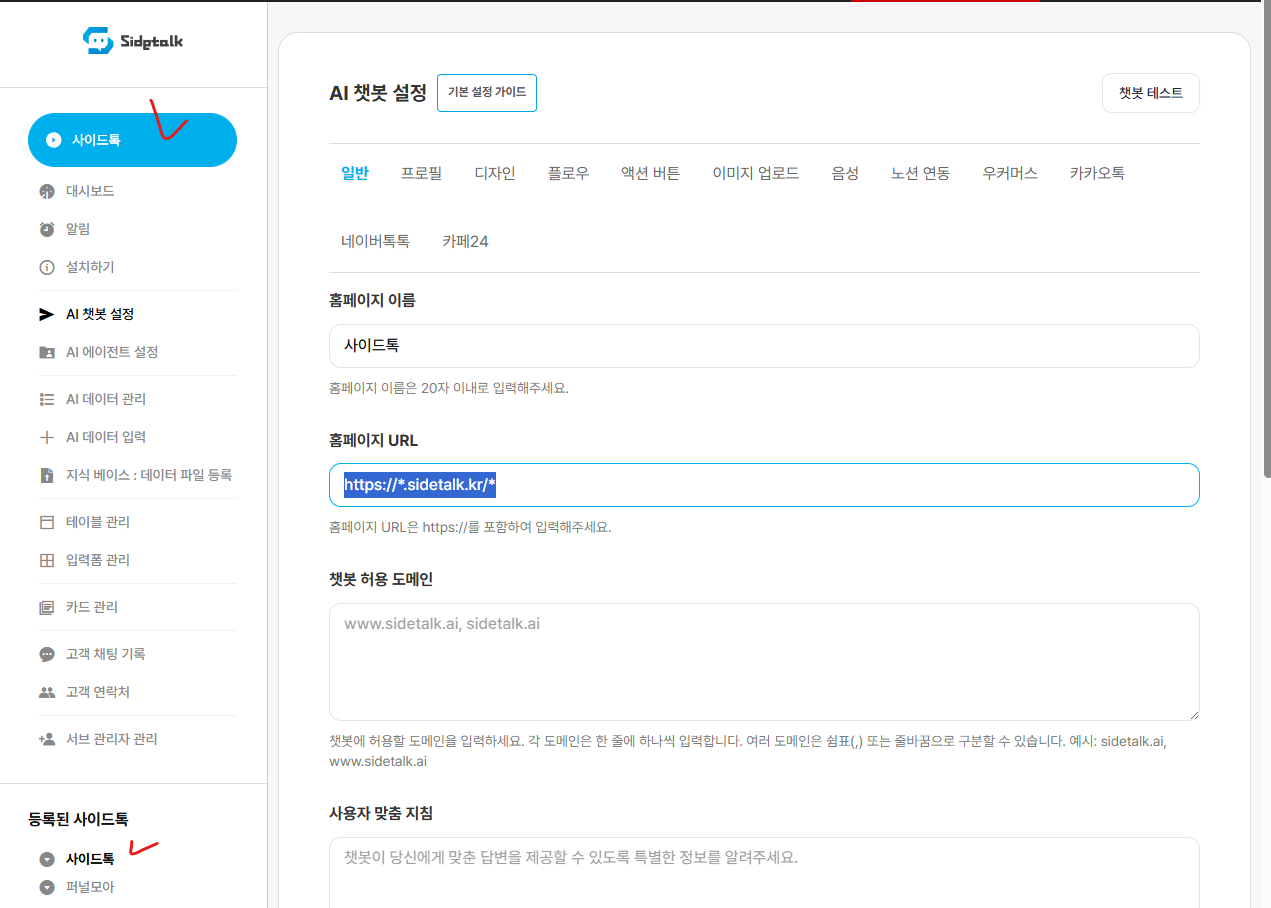
The initial greeting is shown when a customer first opens the chat window. Choose text or card format.
For card format, choose a card prepared in Card Management.
[Image of chatbot name, allowed domains, and initial greeting settings]
When finished, click Update at the bottom of the page to save.
3. Handling missing information
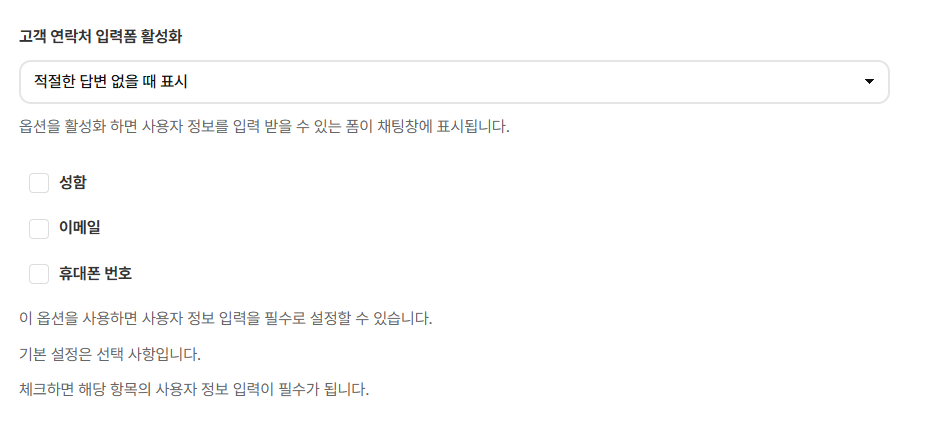
Choose what to show customers when the AI cannot find a suitable answer in the registered knowledge.
Under Handling Missing Information, choose Show Message, Show Customer Contact Form, or Show Agent Handoff Card.

If you choose Show Message, customers see the text entered in the No Information Message field below.
Manage contact form fields in AI Chatbot Settings → Customer Contact Collection. The agent handoff feature must be enabled to use an agent handoff card.
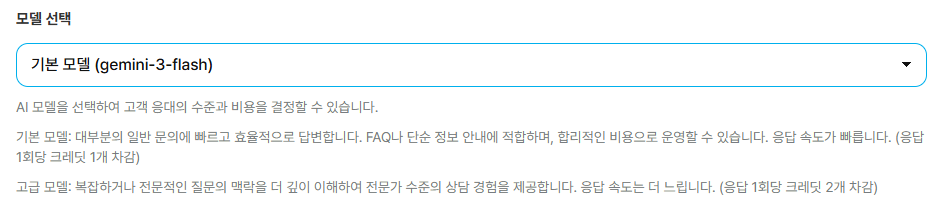
4. Select an AI model
Choose the AI model the chatbot uses to generate answers.
- Basic model: answers ordinary FAQs and information requests quickly and efficiently. Uses 1 credit per response.
- Advanced model: suitable for complex questions or specialist consultation. Uses 2 credits per response.
Available models may change, so choose from the list shown in the actual settings screen.
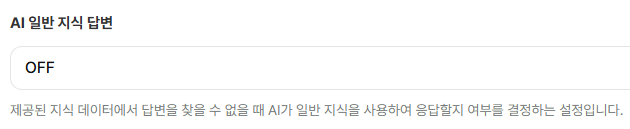
5. AI general knowledge answers
Choose whether the AI can use general knowledge when it cannot find an answer in registered knowledge data.
- ON: the AI can use general knowledge to answer questions not covered by registered data.
- OFF: it does not use general knowledge for questions outside the registered data.
Set this to OFF if you want conservative answers based only on your registered data.
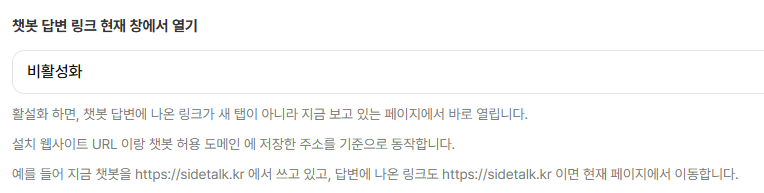
6. Open chatbot answer links in the current window
When enabled, links in chatbot answers that use the same domain can open in the current window rather than a new tab.
This uses the addresses registered in Installation Website URL and Allowed Chatbot Domains.
For example, if the chatbot installation address and a link in its answer both use https://sidetalk.kr, the link opens in the current page.
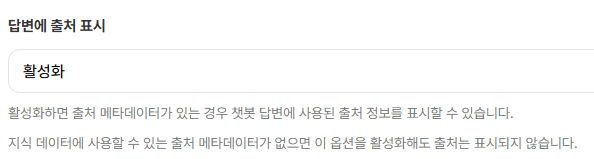
7. Show sources in answers
When enabled, answers can include information about the sources used to generate them.
If the knowledge data has no available source information, sources will not appear even with this setting enabled.
8. Show reasoning progress
Choose whether customers see intermediate progress messages while the chatbot generates an answer.
- Show reasoning progress: display progress messages during answer generation.
- Hide reasoning progress: do not display the reasoning progress.

9. Save and check
After changing the settings, click Update at the bottom of the page to save.
After saving, open Chatbot Test in the dashboard to check the initial greeting, answer style, link navigation, source display, and behavior when information is missing.