
How do I collect customer contact details?
1. Introduction
Sidetalk can collect customer information during chat, including names, email addresses, and mobile phone numbers.
Use the collected information to identify customers or contact them after a conversation. You can review it in Customer Contacts in the Sidetalk dashboard.
You can collect customer contact details in the Sidetalk chat window. (Example)
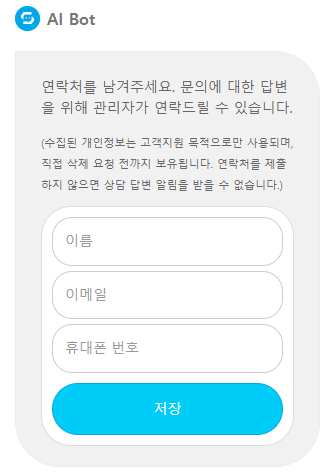
2. Configure customer contact collection
Go to the following menu in the Sidetalk dashboard.
Sidetalk Dashboard → AI Chatbot Settings → Customer Contact Collection
Show the form when chat starts
Choose whether to show the contact form when a customer starts chatting.

- Do not showDo not show the customer contact form when chat starts.
- Show when chat startsShow the customer contact form when the customer opens the chat window and starts a conversation.
After changing the settings, click Update at the bottom of the page to save.
3. Show the form when no suitable answer is available
You can configure the customer contact form to appear when the AI cannot find a suitable answer.
Go to the following menu.
Sidetalk Dashboard → AI Chatbot Settings → General
Select the following option under Handling Missing Information.

Show customer contact form
With this option, the contact form can appear when the AI cannot find a suitable answer in the registered knowledge.
This works separately from the Show Form When Chat Starts setting in Customer Contact Collection.
4. Configure collection fields
In Customer Contact Collection, configure the fields customers will fill in.
The following fields are available by default.
- Name
- Mobile phone number
Each field offers the following settings.
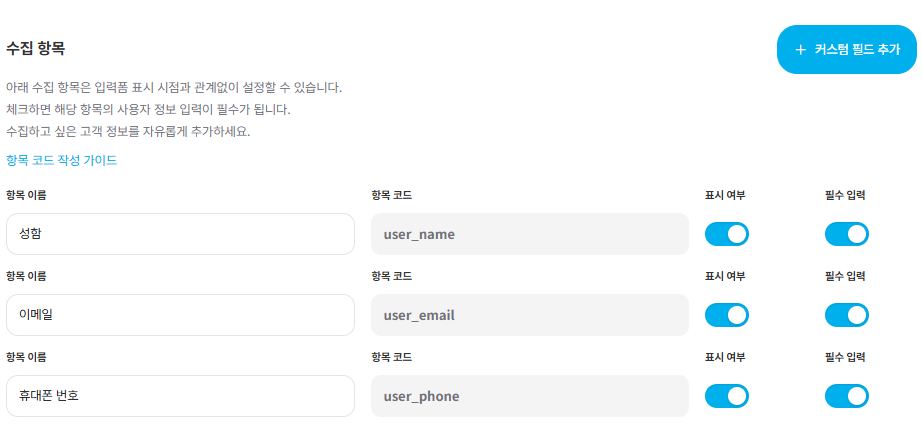
Field name
The name shown in the customer’s form.
Change it to suit your service, such as Full Name, Email Address, or Contact Number.
Visibility
Choose whether to show the field in the customer contact form.
Hidden fields do not appear in the customer’s form.
Required
Require the customer to fill in this field when submitting the form.
Customers can submit the form without filling in fields that are not required.
When configuration is complete, click Update to save.
5. Add custom fields
Add other customer information you need beyond name, email, and mobile phone number.
Click Add Custom Field in Customer Contact Collection.
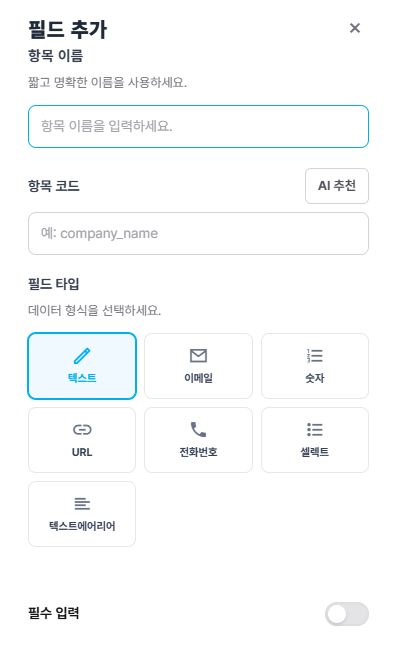
For example, you can add the following information.
- Company name
- Department
- Inquiry type
- Product of interest
- Preferred reservation date
- Customer tier
Enter the following information for each custom field.
Field name
The field name shown in the customer form.
Example:
- Company name
- Inquiry type
- Product of interest
Field key
A unique value used to store and identify the collected information.
Use lowercase English letters, numbers, and underscores (_).
Example:
company_nameinquiry_typeinterested_product
Do not reuse another field’s key. Each field key must be unique.
Field type
Choose a type appropriate for the information you collect.
- text: a short, ordinary text entry
- email: an email address
- tel: a phone number
- number: a number
- textarea: a long text entry
- select: choose one predefined option
For a select field, also enter the options the customer can choose.
Example:
- Product inquiry
- Billing inquiry
- Technical support
- Other inquiry
6. Review collected customer contacts
Find contact details entered by customers in the following menu.
Sidetalk Dashboard → Customer Contacts
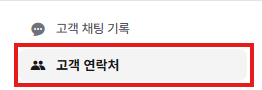
Customer Contacts shows the following information.
- Customer name
- Mobile phone number
- Additional customer information
- Customer notes
- Features used
- Latest activity and related records
Search or filter customers by the following criteria.
- Whether an email or mobile number is available
- Chat history
- Agent handoff
- Reservation history
- Forms and tables
- Customer information link
- External API
Edit customer information or add customer notes as needed.
7. Link WordPress members
With the Sidetalk plugin for WordPress, information about signed-in WordPress members can be linked to Sidetalk customer information.
If signed-in member information is not registered automatically, check the following.
- Whether the Sidetalk plugin is active
- SITE KEY and SIGN KEY settings
- Member information integration settings
- Customer contact collection field settings
- Compatibility with your WordPress membership plugin
[Reference manual]
8. Notes
- Fields with visibility turned off do not appear in the customer form.
- Customers cannot submit the form if required fields are empty.
- An email address or mobile number must be collected to send email or SMS notifications after a conversation.
- SMS notifications may require Solapi integration.
- Collect only necessary information, and state the purpose of collection and retention criteria in your privacy policy.