
Discord integration guide
A one-sentence overview
Sidetalk’s Discord integration lets you invite a bot to a Discord server, then use /sidetalk in chat to ask the AI questions and receive answers.
Prepare these before starting
- A Discord account
- Administrator access to a Discord server
- Access to the Sidetalk administration page
Overall process
- Create a Discord app
- Copy the three required keys
- Enter the keys in Sidetalk Admin
- Enter the interaction URL in Discord
- Invite the bot to your server
- Enter the server ID in Sidetalk and create the command
- Test with a slash command
1. Create a Discord app
Description
First, create a new app in the Discord Developer Portal.
Example image
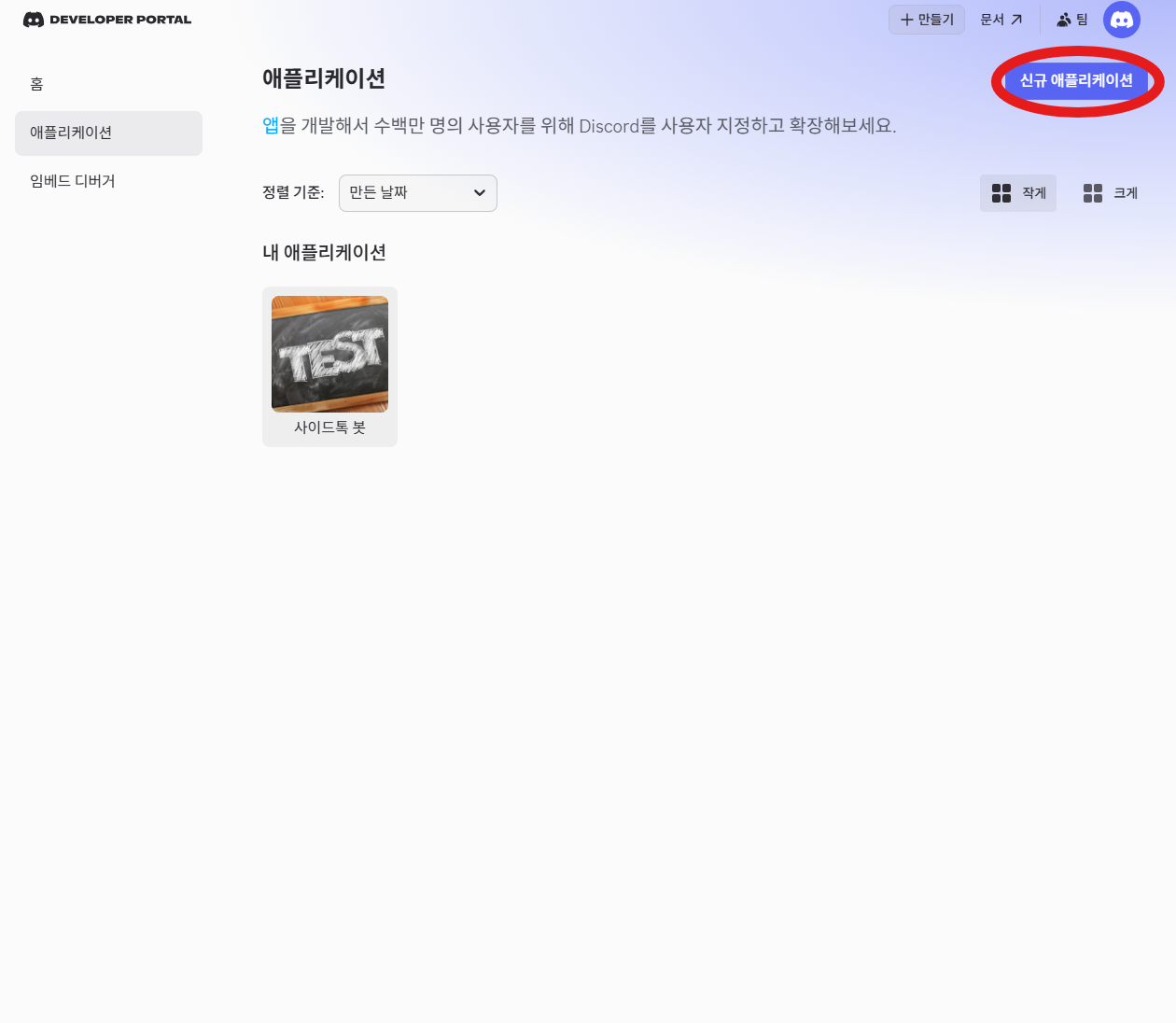
Open the Discord Developer Portal and click New Application to create an app.
Steps
- Open the Discord Developer Portal.
- Click New Application.
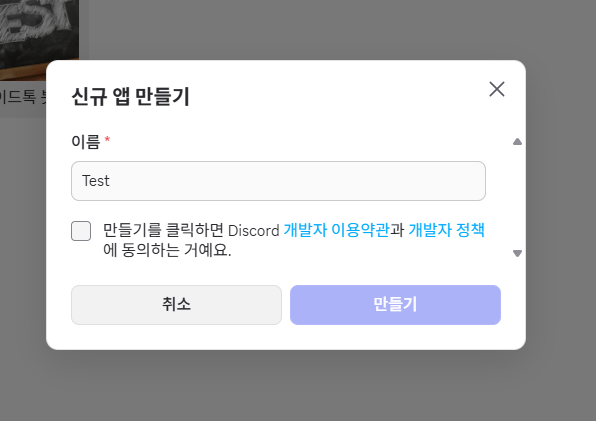
- Enter the name you want.
- Click Create.
Example image
2. Copy the three required keys
Description
Find and copy the three essential keys needed to connect Sidetalk to the bot.
Steps
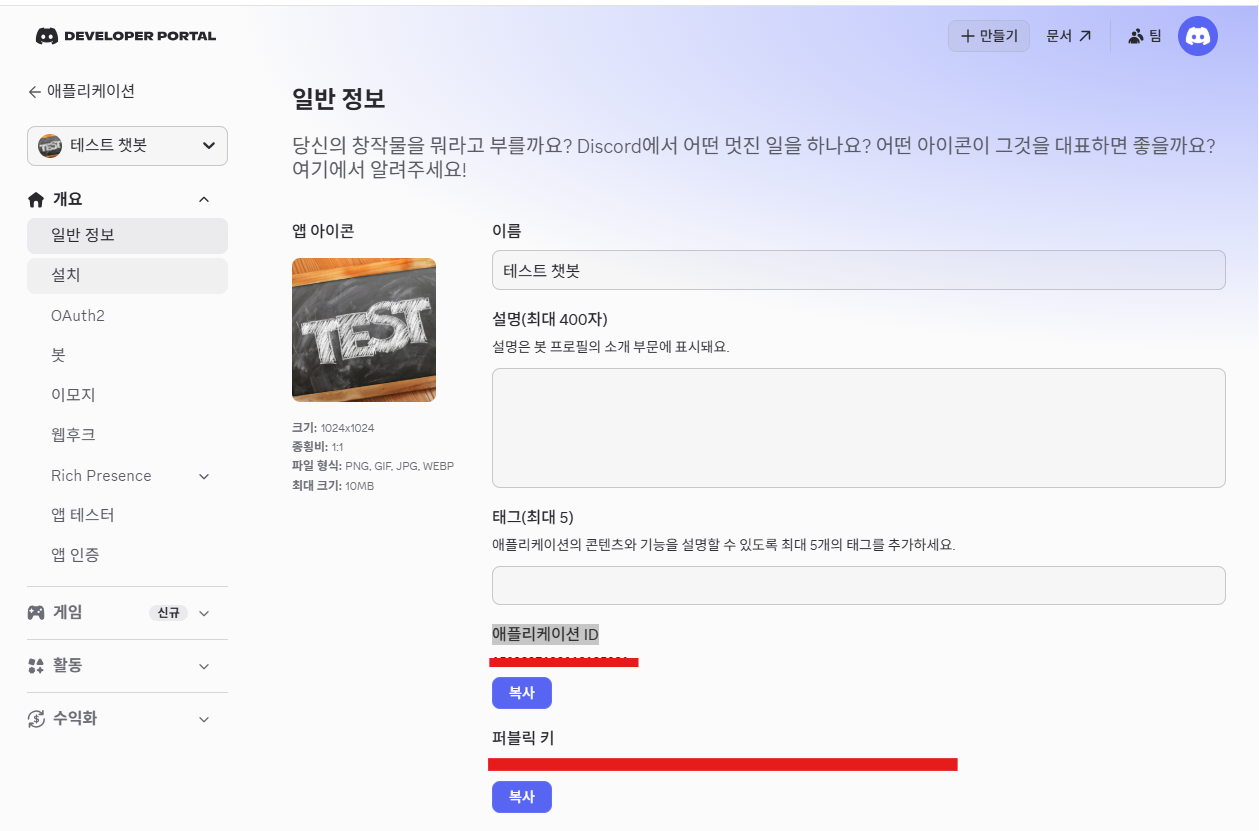
- Copy [Application ID] and [Public Key]
- Click General Information in the left menu.
- Copy the Application ID and Public Key shown in the example and keep them in a notepad.
- Copy [Bot Token]
- Click Bot in the left menu.
- Click Reset Token to issue a new token, then Copy and keep it in a notepad.
3. Enter the keys in Sidetalk Admin
Description
Enter the three copied keys in Sidetalk to prepare the integration.
Steps
- Open the Sidetalk dashboard in WordPress.
- Go to AI Chatbot Settings → External Service Integration → Connect External Service → Discord.
- Paste the Bot Token, Application ID, and Public Key into their respective fields.
- Click Connect below.
4. Enter the interaction URL in Discord
Description
Provide a URL so Discord can send a signal to Sidetalk when users enter /sidetalk.
Steps
- In Sidetalk External Service Integration → Discord Connection, a read-only address appears in [Discord Interaction Endpoint URL]. Click it to copy.
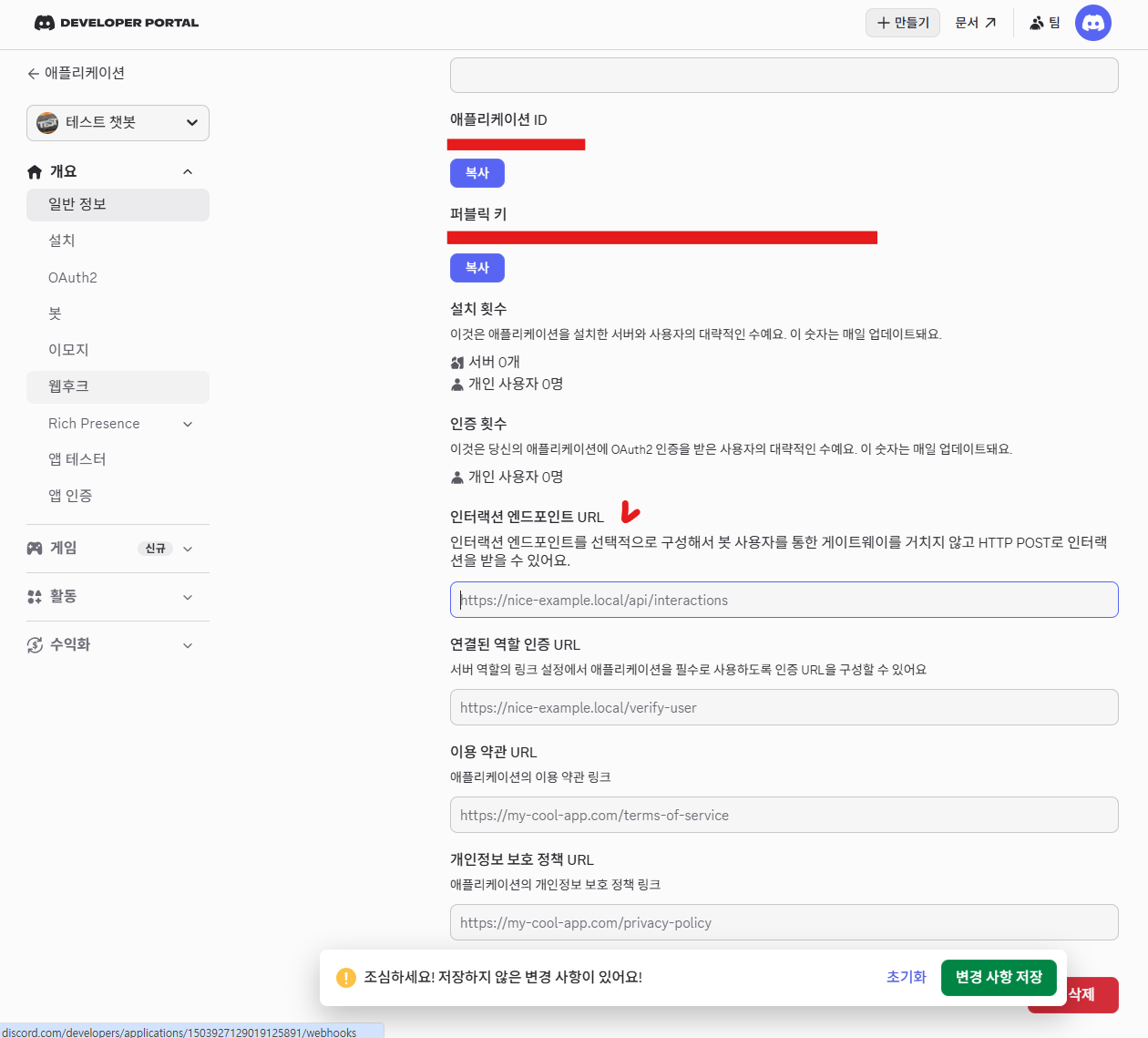
- Return to the Discord Developer Portal and click General Information in the left menu.
- Paste the copied Sidetalk URL into Interaction Endpoint URL around the middle of the page.
- Click the green Save Changes button. (It must save successfully.)
5. Invite the bot to your server
Description
Invite the bot to the Discord server you use. Grant the required permissions for slash commands.
Steps
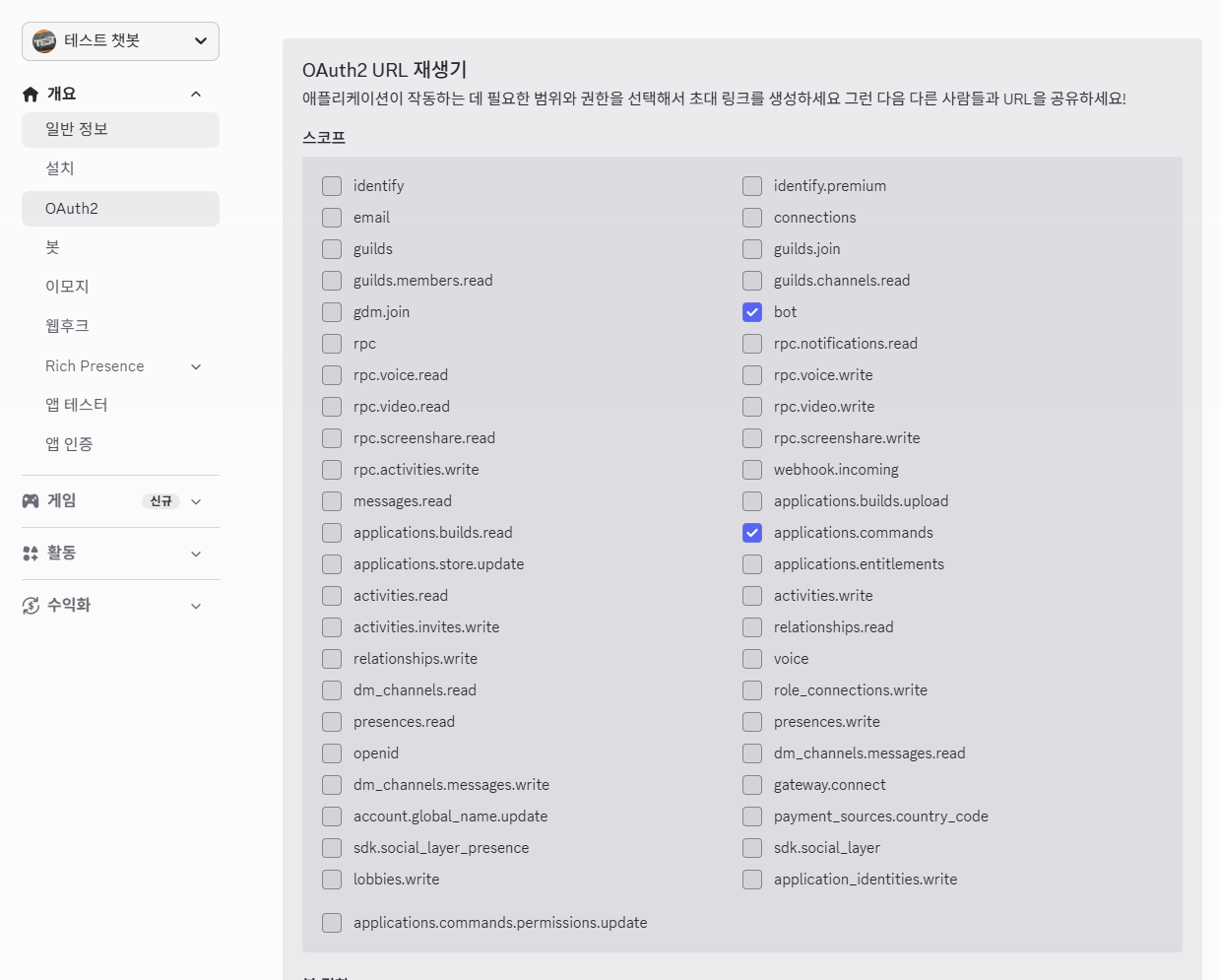
- In the Discord Developer Portal, go to OAuth2 → OAuth2 URL Generator in the left menu.
- Under SCOPES, select bot and applications.commands.
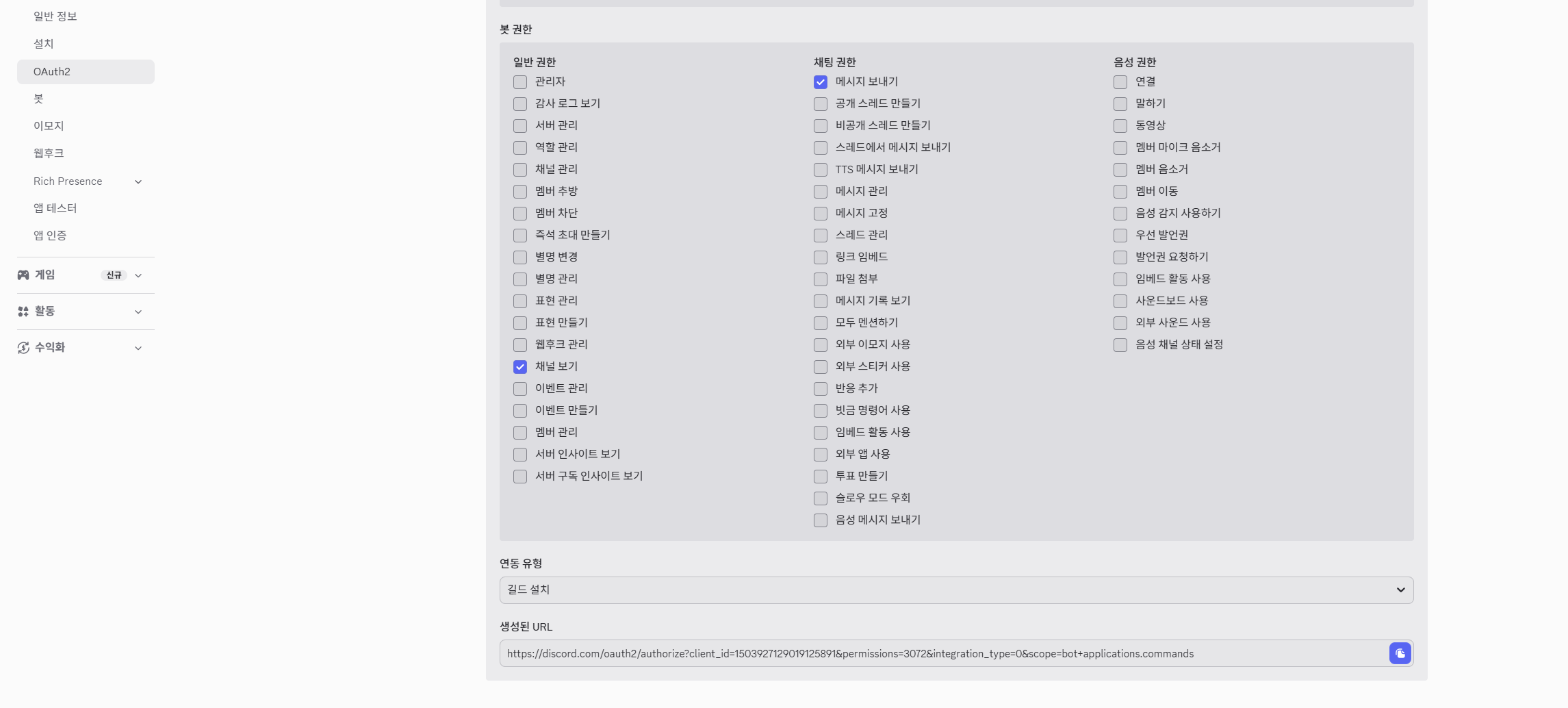
- Under Bot Permissions below, select Send Messages and optionally Send Messages in Threads.
- Copy the Generated URL at the bottom, paste it into your browser’s address bar, and press Enter.
- Select the Discord server to add the bot to and click Authorize to invite it.
6. Copy the server ID
Description
Sidetalk needs the server ID to know which Discord server’s users are allowed.
Steps
- Right-click the server you want to use in Discord.
- Click Copy Server ID.
- Keep it temporarily in a notepad or similar tool.
7. Test with a slash command
Description
Setup is complete! Enter a command in chat to call the AI.
Steps
- Open chat in the Discord server where the bot was invited.
- Type /sidetalk to see command autocomplete.
- Press Enter, enter your question in the question field, and send it.
Example test questions
- /sidetalk question: Explain our company’s leave application process
- /sidetalk question: Give me the internal manual link
- /sidetalk question: Summarize our work rules
FAQs and troubleshooting
Q. I get an error saying “This command cannot be used.”
- You probably invited the bot without selecting the applications.commands scope. Remove the bot from the server and repeat [Step 5].
Q. INTERACTIONS ENDPOINT URL does not save and shows an error.
- The Application ID or Public Key in the Sidetalk dashboard may be incorrect, missing, or unsaved. First check that all three keys are saved correctly in Sidetalk.
Q. Can the AI answer only in a specific room?
- Yes! Enter the chat channel ID in Allowed Discord Channel ID in Sidetalk settings. In other rooms, the bot will ignore requests or show an error.
Q. Can I change the default /side0talk command to another word?
- Yes, you can change it anytime! Korean is fully supported too. Enter your preferred word, such as Sidetalk, Question, or Helper, in [Discord Command Name] in the dashboard and save; the Discord command is overwritten immediately within one second.