
Notion page integration guide
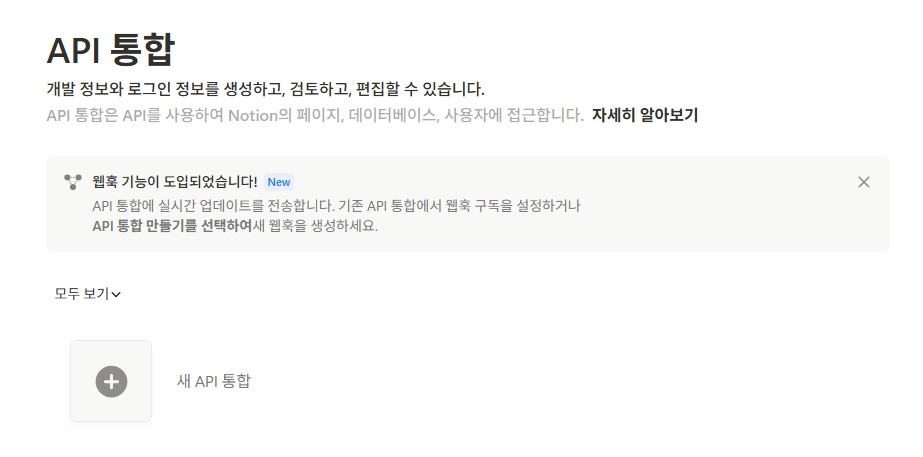
1. Click the button below to open the API integration settings page.
2. Create a new integration or select an existing one.
Choose Private as the type.
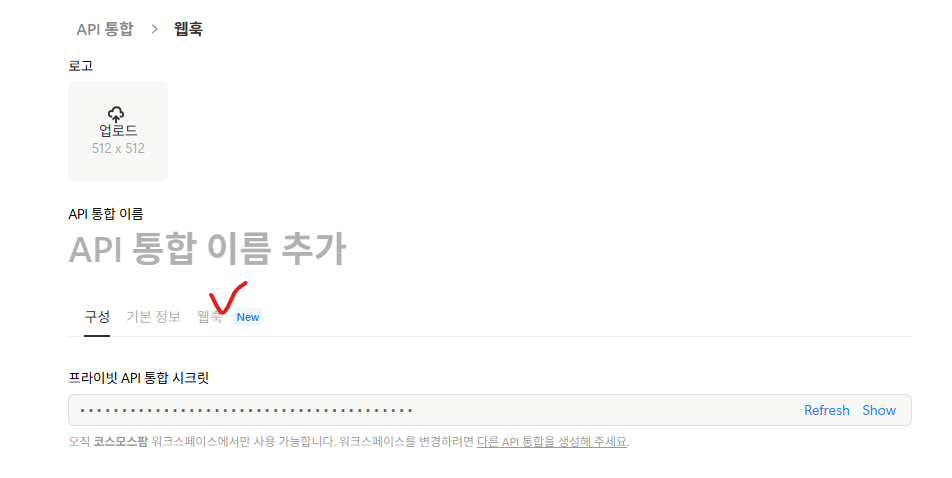
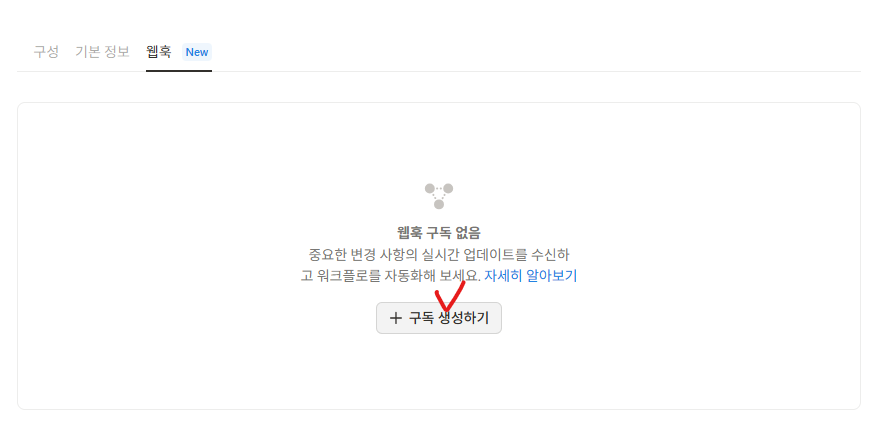
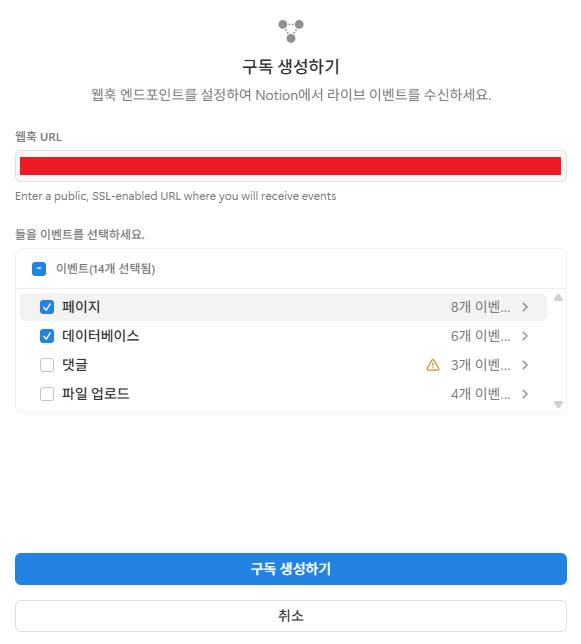
3. Open Webhooks and click Create Subscription.
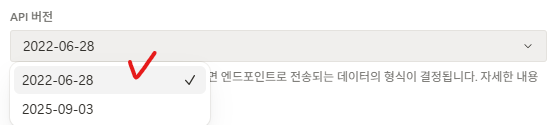
Choose API version 2022-06-28.
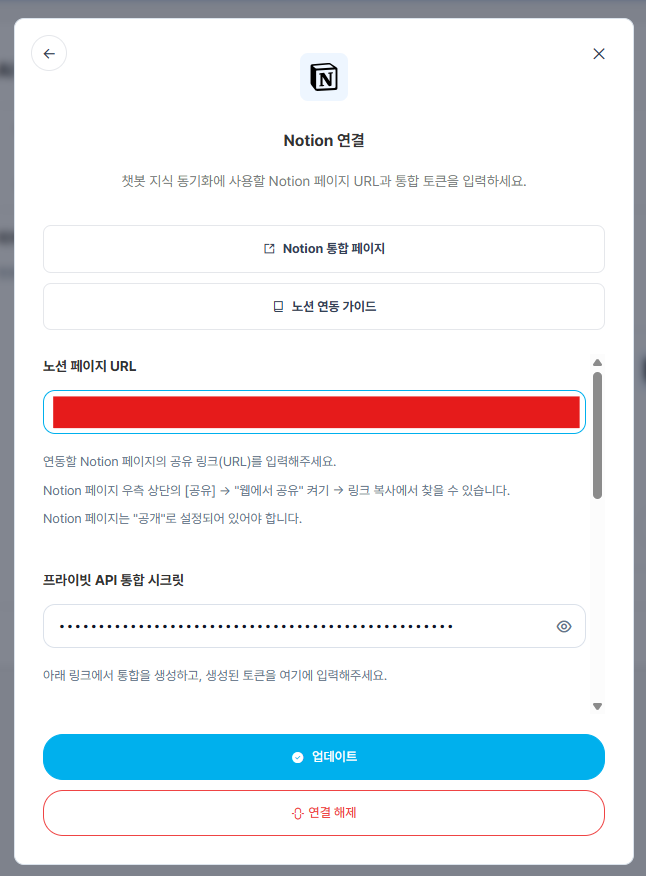
4. Enter the webhook URL. Find it in External Service Integration under AI Chatbot Settings in the Sidetalk dashboard.
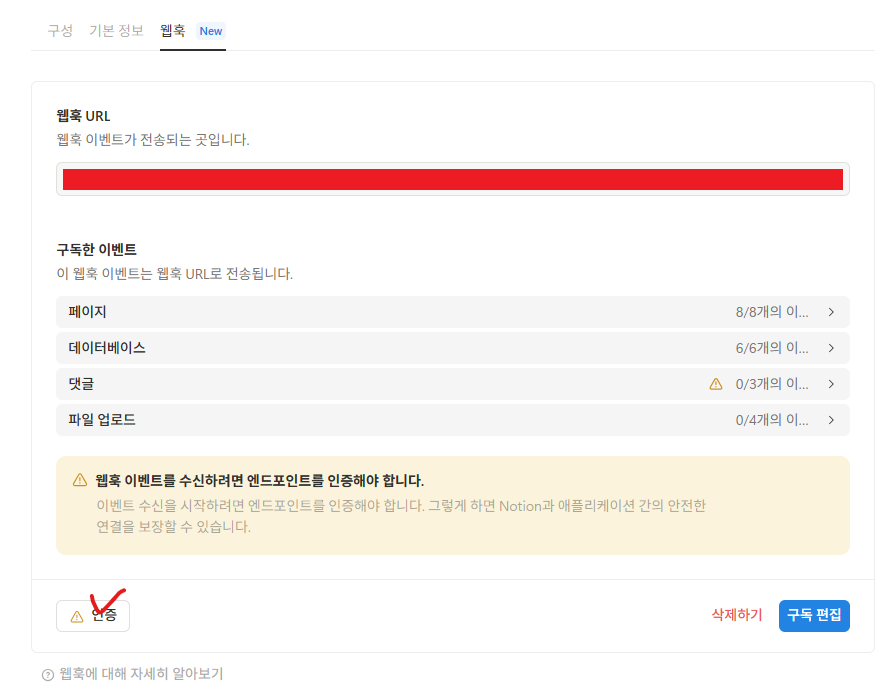
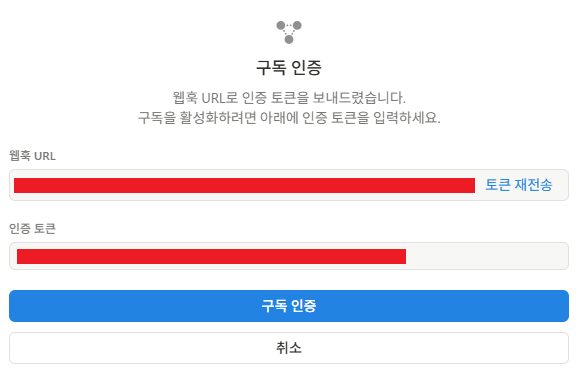
5. Click Verify to complete verification.
Find the verification code in Notifications in the Sidetalk dashboard.
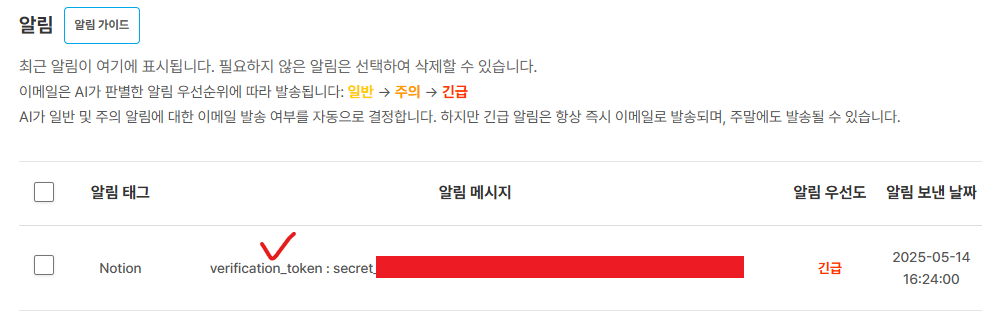
6. Copy the entire authentication token, starting with secret_, and enter it.
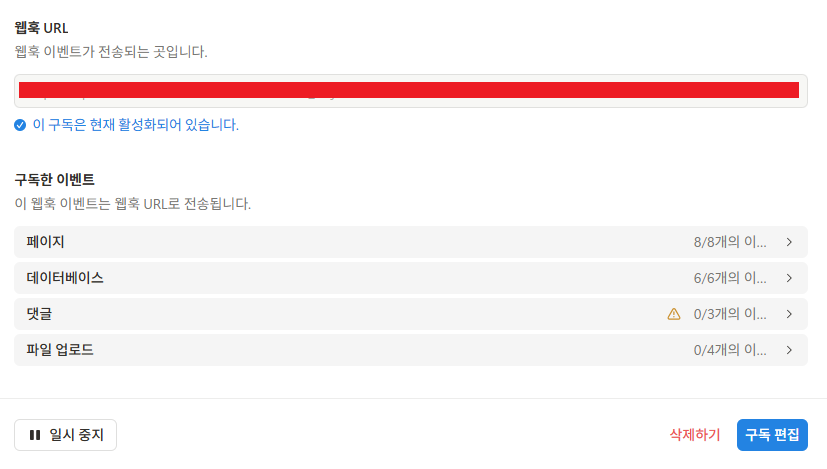
7. Once the subscription is shown as active, setup is complete.
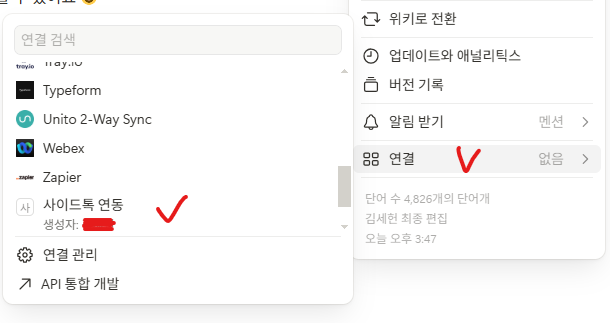
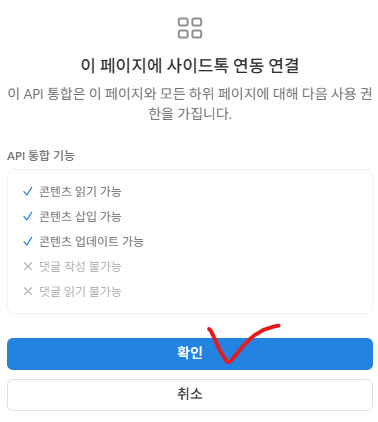
8. Open the Notion page you want to use as knowledge, click the menu (…) at the top, select Connections, choose the API integration created in step 3, and confirm.
9. Create pages inside the Notion page used as knowledge and enter their content.
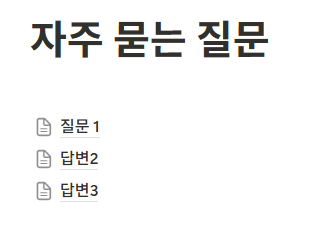
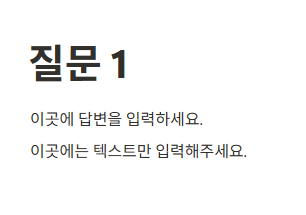
Page titles are used as questions, and page contents are used as answers.
In the image below, Question 1, Answer 2, and Answer 3 are separate pages.
The image below shows the inside of Question 1. (Question-and-answer example)
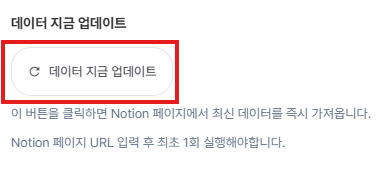
10. Click Update Data Now in Sidetalk Dashboard → AI Chatbot Settings → External Service Integration → Notion to register the page contents. (Subsequent page changes are updated automatically.)
※ After deleting all data, use Update Data Now to register it again.