
How do I install Sidetalk on my website?
Choose one of the methods below 😀
1. Installing on a website built with Imweb or Cafe24
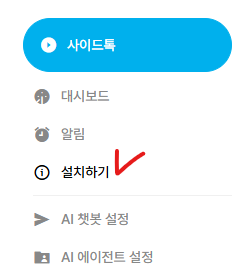
Go to the Sidetalk website → Dashboard → Install for the chatbot you manage.
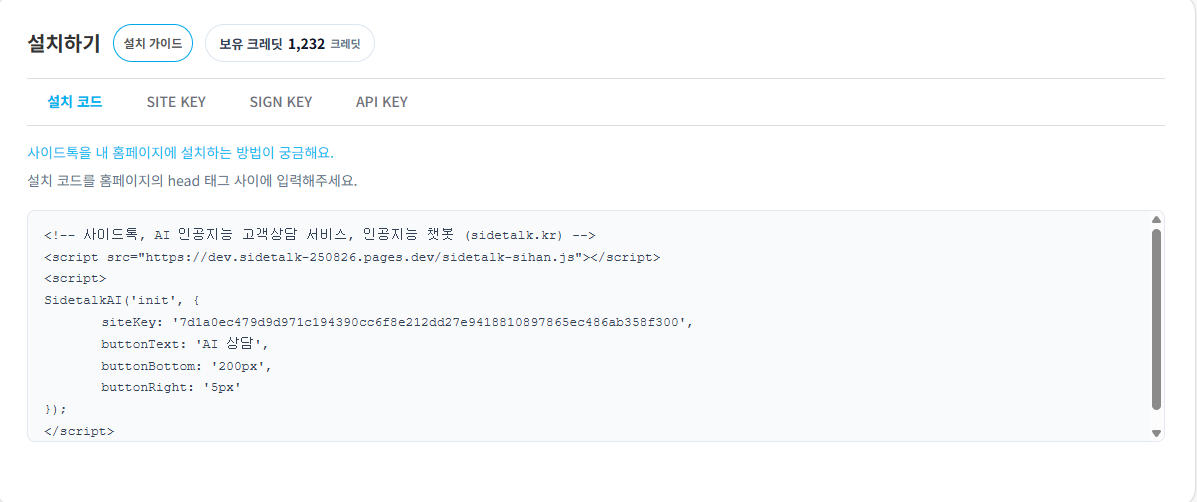
Copy the Installation Code on the Install page and paste it between your website’s head tags.
Where to enter code in Imweb
2. Installing on a website built with WordPress or Funnelmoa
Install the Sidetalk AI plugin for WordPress to connect easily.
⬇️ Download the plugin ⬇️
Sidetalk AIAI support agent and operator: if you struggle without dedicated support staff, let Sidetalk handle customer inquiries.https://ko.wordpress.org/plugins/sidetalk-ai/After downloading the ZIP file,
go to WordPress Admin → Add New Plugin, install the plugin from the ZIP file, and activate it.
Configure it in the Sidetalk AI menu in WordPress Admin.
3. Installing on a website built with Runmoa
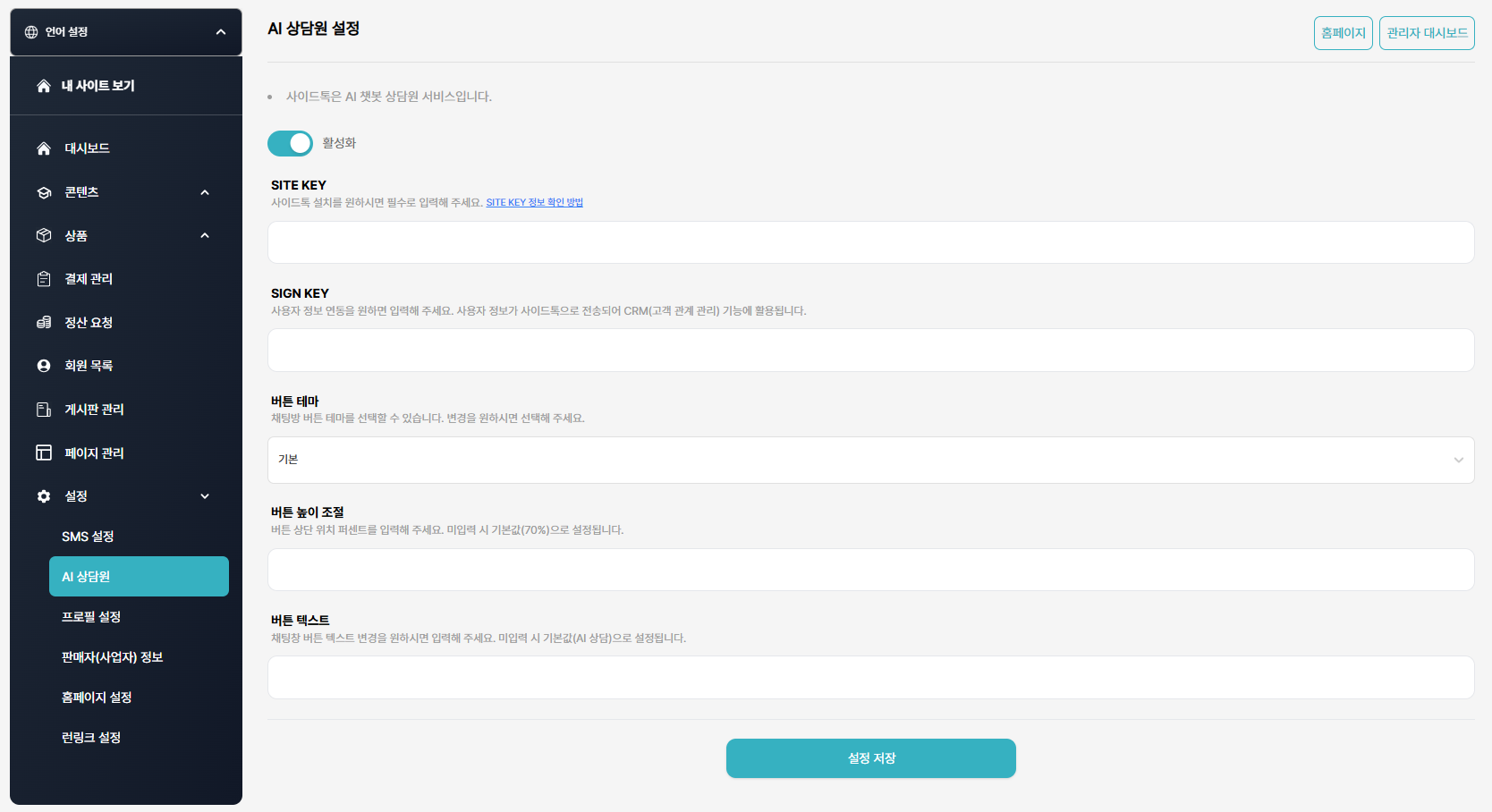
Go to the Sidetalk website → Dashboard → Install for the chatbot you manage.
Copy the SITE KEY and SIGN KEY, then
go to the Runmoa website → Admin → Settings → AI Support Agent, enter the details, enable it, and save.
4. Using it as an AI chatbot for a KakaoTalk channel
If you run a KakaoTalk channel, you can connect an AI chatbot to handle channel chat inquiries.
Try Sidetalk AI as your KakaoTalk chatbot.
For detailed setup instructions, see the link below.
5. Installing in a custom-built solution
You can install it using the installation code as described in method 1.
If your website has no relevant setting, contact its developer or administrator to install it.
6. Join the group chat to talk with other Sidetalk users and get help!
Sidetalk user group chat ← Click to join
Building Sidetalk together 💕