
SendEasy Consult Talk connection guide
1. What this integration does
Connect SendEasy Consult Talk to handle AI and live agent conversations inside the customer’s KakaoTalk chat. Agents reply from Sidetalk and can follow the preceding AI conversation in the same history. Basic Kakao chatbot integration directs customers to a separate Sidetalk chat page for agent support. During an agent conversation, customers and agents can also exchange supported images and ordinary files.
2. Before you start
- Contact Sidetalk support to request SendEasy Consult Talk integration. We will send you a signup link and explain the service application process. If you already have a SendEasy account, mention it when contacting us.
- Follow the instructions to complete the Consult Talk service application, approval and Kakao channel sender profile registration.
- Under AI chatbot settings → KakaoTalk, turn KakaoTalk integration ON and keep it enabled.
- When using SendEasy Consult Talk, you may disconnect the channel from the existing bot under Kakao Chatbot Manager → Settings → KakaoTalk channel connection. Keeping the bot connected can display a 상담 종료 (End consultation) button in KakaoTalk, which customers may confuse with ending a SendEasy agent conversation. Disconnect only the bot-to-channel connection; keep Sidetalk KakaoTalk integration and the SendEasy connection enabled.
- Under AI chatbot settings → Agent handoff, turn both Enable Agent Handoff and Enable Live Chat ON and save. Check availability, agents and the handoff card. With live chat OFF, only guidance is shown and live agent handoff does not proceed.
- To exchange files during an agent conversation, also turn Allow File Uploads in Live Chat ON and save. See the agent handoff settings guide for details.
3. Collect three values
API Key: your company’s production SendEasy API Key.
Kakao channel / sender key: in SendEasy, open the service’s Register Sender Profile (발신프로필 등록) screen and copy Sender profile key (발신프로필키). This is not the channel name or the Kakao channel ID beginning with an underscore.
Channel callback signing key (secretKey): on the same screen, find Member receiving domain registration (회원사 수신도메인 등록) and copy Signature verification key (X-Relay-Signature, HMAC-SHA256). Use the key belonging to this sender profile.
4. Allow API requests in SendEasy
- Find Member ACL registration (회원사 ACL 등록) on the sender profile screen.
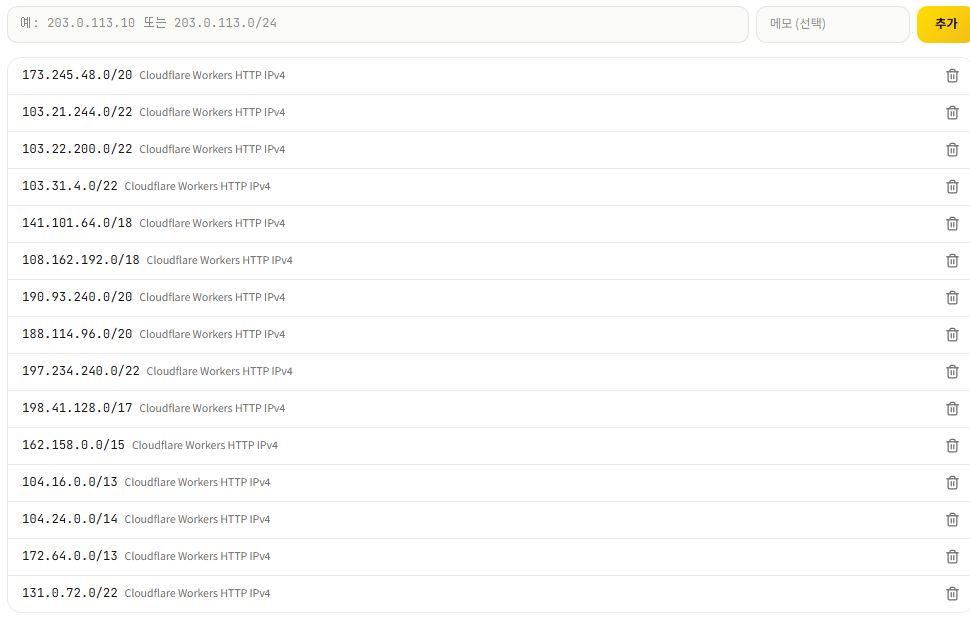
- Follow the Sidetalk connection screen and add each CIDR from the official Cloudflare IPv4 list.
- Register all the ranges in the list, rather than only your current IP. Contact Sidetalk support if you need help.
5. Connect Sidetalk and register the callback
- Open AI chatbot settings → External service integrations → Connect external service → SendEasy Consult Talk. For an existing connection, select its Settings button.
- Enter the production API Key, sender profile key and callback signing key. Copy the complete Callback URL to register in SendEasy.
- In SendEasy, under Member receiving domain registration, first register the SendEasy receiving server with Kakao using the button in step 1.
- In step 2, Member receiving domain (member server address), paste the entire callback URL copied from this Sidetalk site and save it. Do not shorten or edit the copied URL.
- Select Activate chat (채팅 기능 활성화) on the same SendEasy page.
- Return to Sidetalk and select Connect or Update. Check that the settings were saved. Any required Kakao message review is requested automatically; check the result in SendEasy.

6. Test AI and agent conversations
- Open the Kakao channel as a customer and send a question. If AI 상담 시작하기 (Start AI consultation) appears, select it and enter the question again.
- Confirm the AI answer arrives in KakaoTalk and the conversation appears in Sidetalk history.
- Enter 상담원 연결 to show the configured agent handoff card, then press its connection button. Site handoff settings and availability still apply.
- Reply from Sidetalk live chat and verify it arrives in the same customer Kakao chat.
- Enter 상담 종료, or end the conversation from the agent screen, to return to AI assistance. Send another question and check the AI reply.
- Test file exchange in both directions while connected to an agent. Download files when browser preview is unavailable.
Attachments during AI assistance: customers can ask about photos when image uploads are enabled. Content analysis of ordinary files such as PDFs and documents is currently unsupported. Enter the content as text or request an agent.
Attachments during agent chat: live chat file uploads must be enabled. When agents send files to KakaoTalk, JPG, PNG and GIF images can be up to 5MB each, and supported ordinary files up to 200MB each. Ordinary files must use supported formats such as PDF, DOCX, XLSX, TXT or ZIP. KakaoTalk and Sidetalk limits also apply to sending and receiving.
7. Disconnect and reconnect
Select Disconnect for SendEasy in External service integrations. Ongoing Consult Talk sessions are ended before the saved connection details are deleted. Conversation history is preserved. If termination cannot be confirmed, disconnection stops and an error is shown.
To reconnect, enter all three credentials again. Disconnecting in Sidetalk does not delete the ACL or callback registration in SendEasy. After reconnecting, open the Kakao chat and send a question. If the AI 상담 시작하기 (Start AI consultation) card appears, select its button.
8. Troubleshooting
- IP denied / 403: check the member ACL, actual request IP and production API Key.
- Missing or invalid sender profile: check service approval, profile registration and whether the sender key belongs to the production API Key.
- Customer messages do not arrive: check both receiving-domain registration steps, the full site callback URL, the channel signing key and chat activation.
- No agent connection button: confirm Enable Agent Handoff and Enable Live Chat are both ON and the current time is within availability hours. Showing a handoff card alone does not submit an agent request.
- No session when replying: ask the customer to send a question in KakaoTalk and press AI 상담 시작하기 (Start AI consultation), if shown, to re-enter Consult Talk. Then enter 상담원 연결 and press the handoff card’s connection button. Reply in the new conversation. You do not need to disconnect and register the external service again.
- Saved with a review request warning: check the warning and SendEasy review status, resolve the cause, then select Update in the Sidetalk SendEasy settings to save again and retry any required review request. Saving the settings does not mean Kakao approved the messages. Check pending or rejected review results in SendEasy.
Opening a chat URL on a computer may show Kakao’s default greeting and agent connection card. Under Kakao policy, Sidetalk cannot control this non-mobile chat-start notification. Seeing it does not itself submit an agent request to Sidetalk.