
Usage and Access Management guide
Ask visitors to agree to a usage notice and restrict access to your web chatbot with a shared password.
What does this setting do?
Usage and Access Management lets you configure a notice and a shared password before visitors start chatting. You can enable either feature or use both together.
The usage notice presents information visitors should read and agree to before using the chatbot. The shared password restricts entry to visitors who have been given that password.
1. Open the settings
- Select the chatbot you want to configure in the Sidetalk dashboard.
- Open AI Chatbot Configuration, then select Usage and Access Management.
- Configure Usage Notice and Shared Password as needed, then select Save.
2. Configure the usage notice and agreement
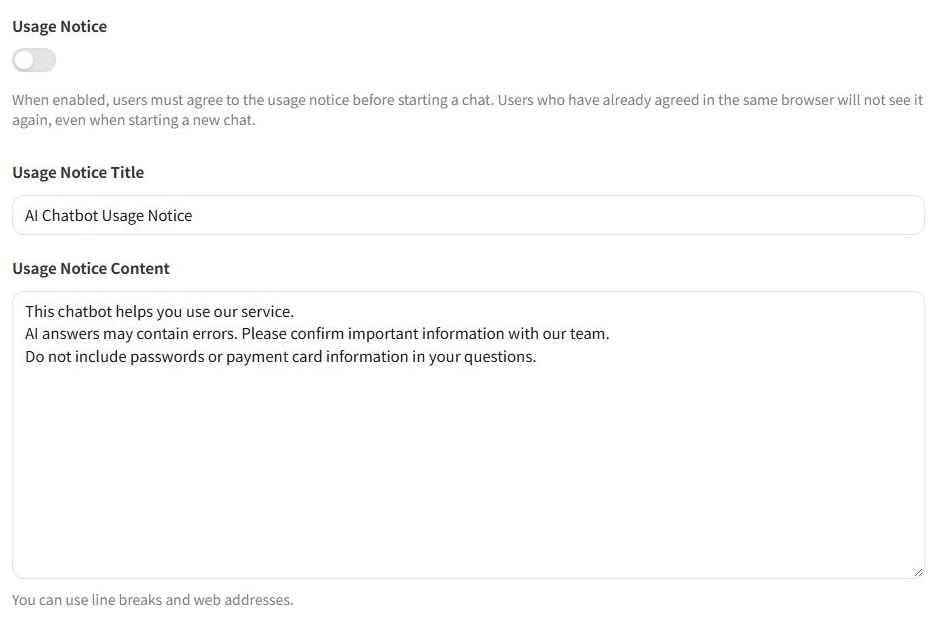
Content is required when Usage Notice is enabled. The title supports up to 200 characters and the content up to 20,000 characters. Leaving the title blank uses the default heading.
If the agreement is still recorded in the same browser storage, starting a new chat does not display the notice again. It may appear again in another browser, on another device, in a private browsing window, or after site data is cleared.
Editing only the notice title or content does not currently reset an existing agreement. To review an updated notice, use an environment without a saved agreement, such as a private browsing window.
- Turn on Usage Notice.
- Enter the heading visitors should see in Usage Notice Title, such as AI Chatbot Usage Notice.
- In Usage Notice Content, explain the purpose of the chatbot, how to use its answers, and how to contact you. You can use line breaks and web addresses starting with https://.
- Select Save, then open the chatbot in a browser that has not already agreed to the notice.
- Visitors select Agree in the notice dialog before they can start chatting.
Example usage notice
Adapt this example to match how your service works and how visitors can contact you.
This chatbot helps you use our service.
AI answers may contain errors. Please confirm important information with our team.
Do not include sensitive details such as passwords or payment card information in your questions.
For help from our team, contact customer support through our service.
3. Set a shared password
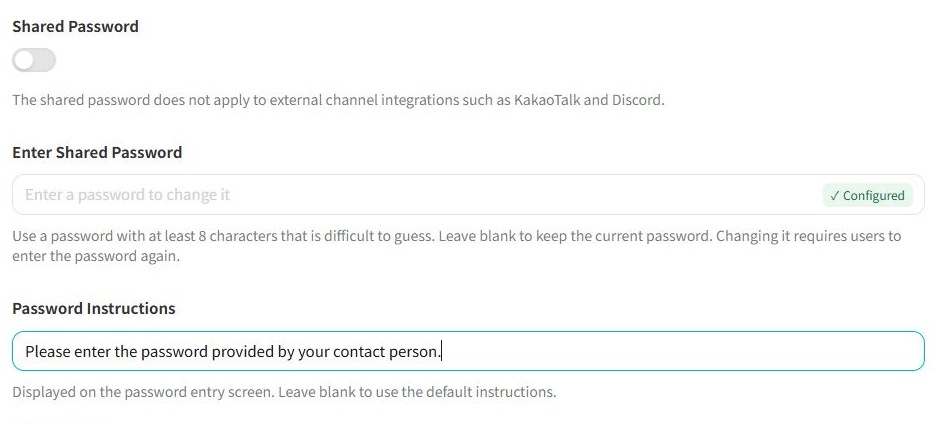
Once a password is configured, leaving its field blank when saving keeps the current password. The saved password itself is not displayed in the settings.
Password Instructions supports up to 500 characters. Leaving it blank uses the default instructions. Visitors can read these instructions before authentication, so do not put the actual password there.
Changing the password invalidates previous authentication, and visitors must enter the new password. To remove the password requirement, turn off Shared Password and save.
When valid authentication remains in the browser, visitors may also start a new chat without entering the password again. A password change, expired authentication, or cleared storage may require another entry.
- Turn on Shared Password.
- Enter a new password of 8–128 characters in Enter Shared Password.
- Use Password Instructions to explain how visitors can obtain the password. For example: Please enter the password provided by your contact person.
- Select Save and check that Configured appears next to the password field.
- Share the password separately with the visitors you want to admit. In a fresh browsing environment, check that the correct password opens the chat.
What do visitors see?
- Usage Notice only: visitors read and agree to the notice on their first visit, then start chatting.
- Shared Password only: visitors authenticate with the password before reaching the chat.
- Both enabled: password authentication comes first. The notice then appears if the visitor has not already agreed.
- Both disabled: neither the notice agreement nor the password entry step from these settings appears.
Where does it apply?
Check these features in embedded website chats, chatbot profiles, and web test screens.
The shared password does not apply to external channel integrations such as KakaoTalk and Discord. If you also need to restrict those channels, review their access arrangements separately.
The notice title, notice content, and password instructions are shown as you write them. Write them in the language your visitors need.
chatbot-test profile-settingsCheck your setup
- Confirm the save message, then reload the settings page to check that your changes remain.
- Use a private browsing window to check the notice and password sequence.
- Check that an incorrect password prevents entry and the correct password opens the chat.
- After agreeing, start a new chat in the same browser and confirm that the notice is not repeated.
- Also check the chatbot on your actual website and its profile page.
Frequently asked questions
Why is the notice missing? A browser with a saved agreement may skip it. Check that the feature is enabled and saved, then test in a private browsing window.
Why does an edited notice not ask for agreement again? Changing only the title or content does not currently clear the saved agreement. Review changes in an environment without that saved agreement.
What if I forget the password? Enter and save a new password in the settings, then give it to your visitors. There is no option to view the existing password.
Why am I seeing an attempt limit? Repeated authentication requests within a short period may be limited. Wait one minute before trying again.
Why can I not save? When Usage Notice is enabled, its content is required. When enabling a password for the first time, enter 8–128 characters. If a message says the settings changed elsewhere, reload the page and save again. If loading or synchronization errors persist, send the displayed error message to your administrator.